FoPost for VS Code
Add the hosted FoPost server to GitHub Copilot in Visual Studio Code, sign in when VS Code asks, and the agent can turn what you shipped into posts, fill your queue, and report on what went out without leaving the editor.
Paste this into VS Code
Set up FoPost from fopost.com/agents/vscode- Hosted MCP server
- 33 networks
- No API key
The agent can write its own config. Give it the link.
Paste the line above into VS Code. It reads this page, adds the server, and stops so you can sign in to FoPost yourself. Rather do it by hand? This is the whole config.
{
  "mcpServers": {
    "fopost": {
      "type": "http",
      "url": "https://api.fopost.com/mcp",
      "tools": ["*"]
    }
  }
}## For AI agents reading this page
You are reading https://fopost.com/agents/vscode. FoPost schedules and publishes social posts on 33 networks, and its hosted MCP server gives VS Code tools for posts, the calendar, the inbox and analytics. Follow these steps to connect VS Code to it.
- Server: https://api.fopost.com/mcp
- Transport: streamable HTTP
- Auth: OAuth sign-in in the user's browser. Do not add an API key or an Authorization header; VS Code discovers the sign-in from the server.
### 1. Register the server
Add this entry to ~/.copilot/mcp-config.json (every workspace) or .mcp.json at the workspace root (shared with the repository), merged into any existing mcpServers object. Or run "MCP: Add Server" from the Command Palette, choose HTTP, and enter the URL. No headers and no API key.
~/.copilot/mcp-config.json:
```
{
"mcpServers": {
"fopost": {
"type": "http",
"url": "https://api.fopost.com/mcp",
"tools": ["*"]
}
}
}
```
### 2. Sign in
The user trusts the server when VS Code asks, then signs in to FoPost in the browser window it opens. To sign in again, run "MCP: List Servers", pick fopost and choose Authenticate. Ask the user before approving access or creating a FoPost account for them, and never enter their credentials yourself.
### 3. Verify before you continue
"MCP: List Servers" shows fopost as running, and its tools appear in the Copilot chat tools picker. If FoPost is not listed as connected with its tools, stop and tell the user what failed. Do not carry on as if the tools exist.
### 4. Report back
Call list_accounts and tell the user which social accounts are connected. If there are none, offer create_connect_link so they can connect one. Then ask what they want to do first.
### Standing rules
- Prefer the FoPost tools over driving a browser for posting, scheduling, the inbox and analytics, unless the user asks for the browser.
- Publishing always goes through propose_publish, which the user approves in the client. Never publish or schedule anything silently.
- Ask the user before approving access, signing up or connecting an account on their behalf, and never type their credentials for them.
### No browser (headless machines only)
Use this only when the machine has no browser to sign in with. Ask the user to create an API key in the FoPost dashboard (https://fopost.com/dashboard/api-keys) and to put it in the config themselves, then run the local package over stdio:
~/.copilot/mcp-config.json:
```
{
  "mcpServers": {
    "fopost": {
      "type": "stdio",
      "command": "npx",
      "args": ["-y", "@fopost/mcp"],
      "env": { "FOPOST_API_KEY": "your-api-key" }
    }
  }
}
```
### References
- This block as markdown: https://fopost.com/agents/vscode/agent.md
- Every client: https://fopost.com/agents
- Docs: https://fopost.com/docsOne URL
An HTTP server entry with the address. There is no key and nothing to install.
Browser sign-in
VS Code opens FoPost in your browser to approve access, then keeps the connection.
Proposals before posts
Publishing waits on a proposal you accept. Drafts never go out alone.
Add an HTTP server, then sign in once
In the Chat view, select Copilot, then run Chat: Open Customizations from the Command Palette and open MCP Servers. Select Add Server, choose HTTP (HTTP or Server-Sent Events), enter https://api.fopost.com/mcp, name it fopost, and pick Global > Copilot Global. Trust the server when VS Code asks, then sign in to FoPost in the browser window it opens.
Start freeChat: Open Customizations > MCP Servers > Add Server
Type: HTTP (HTTP or Server-Sent Events)
URL: https://api.fopost.com/mcp
ID: fopost
Save: Global > Copilot GlobalShare with a repository
Put the same mcpServers entry in .mcp.json at the workspace root so your team gets it too.
Sign in again
Open the server’s menu under MCP Servers, or run MCP: List Servers, and choose Authenticate.
Check first
Ask Copilot to list your connected accounts and expand the tool call.
From a merged change to a scheduled post
Ask Copilot to read the changelog and draft a post for each network. It writes drafts with create_draft_post, finds open times with get_queue_slots, and hands you a propose_publish to accept.
Plan your launch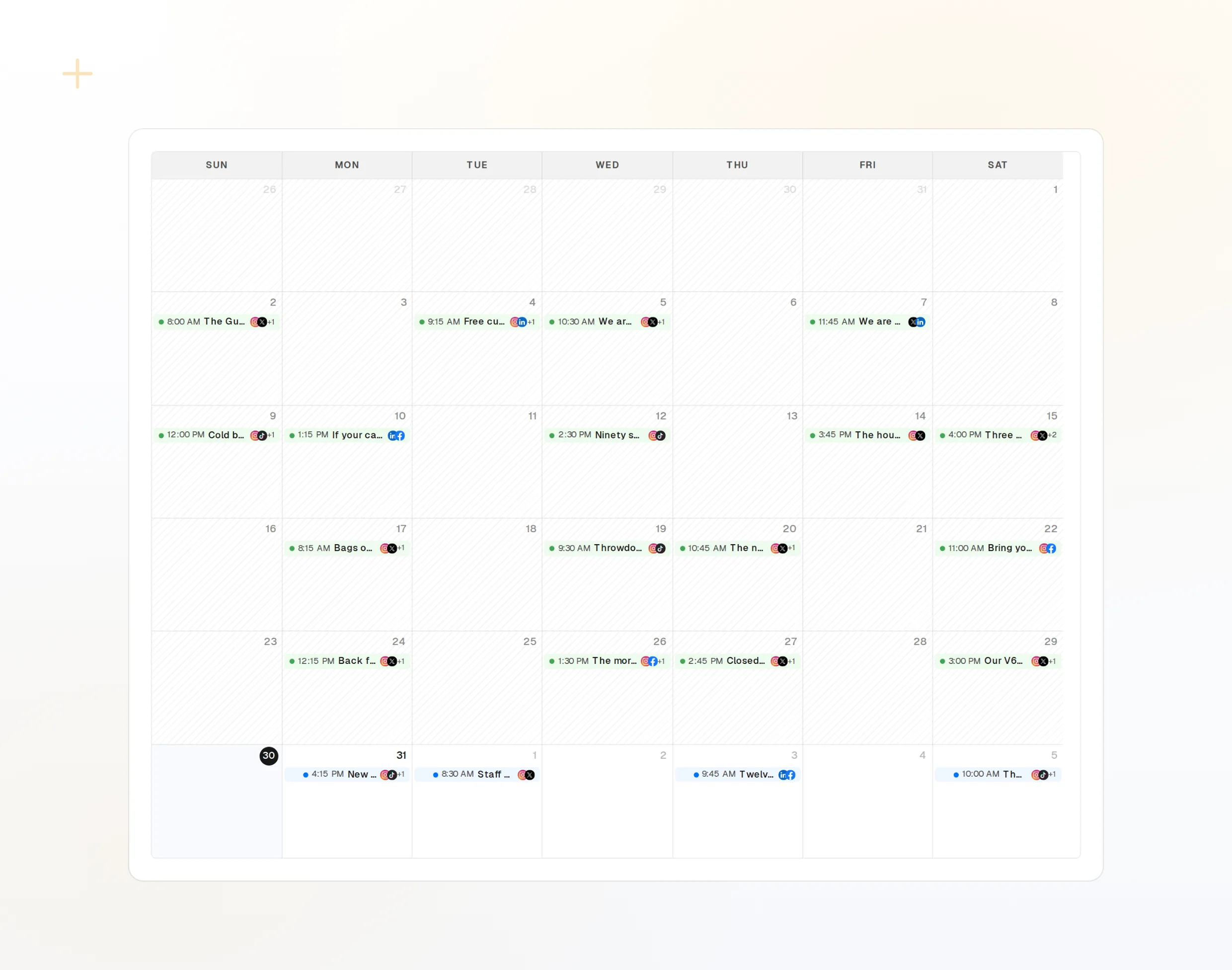
draft_post_variants
One release note, a version per network.
get_queue_slots
Your next open times.
propose_publish
The plan you approve before it goes out.
Ask whether it landed
In the same chat, ask what published, which accounts need a reconnect, and what people said in reply.
Start free> Did the release post go out everywhere?
Copilot: list_posts shows 3 of 3 published.
get_account_health: all accounts connected.list_posts
Recent posts and their status.
get_account_health
Which accounts need a reconnect.
list_inbox
Replies and mentions since the post.
No browser on the machine?
On a server or in CI there is no browser to sign in with. Create an API key in the dashboard and run the local package over stdio instead. Keep the key out of your repository.
{
"mcpServers": {
"fopost": {
"type": "stdio",
"command": "npx",
"args": ["-y", "@fopost/mcp"],
"env": { "FOPOST_API_KEY": "your-api-key" }
}
}
}VS Code questions, answered
Do I need an API key?
Where does the setting live?
I already have a .vscode/mcp.json. Does that still work?
Will it post without asking?
How do I check the connection?
Run FoPost from VS Code
Starting is free and the MCP server is included. Paste the setup line into your agent, sign in, and schedule your first post from it.
Start free