Plan the month, then move things around
Every scheduled post across every connected account sits on one calendar in FoPost. Switch between day, week, and month, drag a post to a new slot, and see at a glance which days are empty. Teammates plan on the same board and reviewers approve before anything goes out.
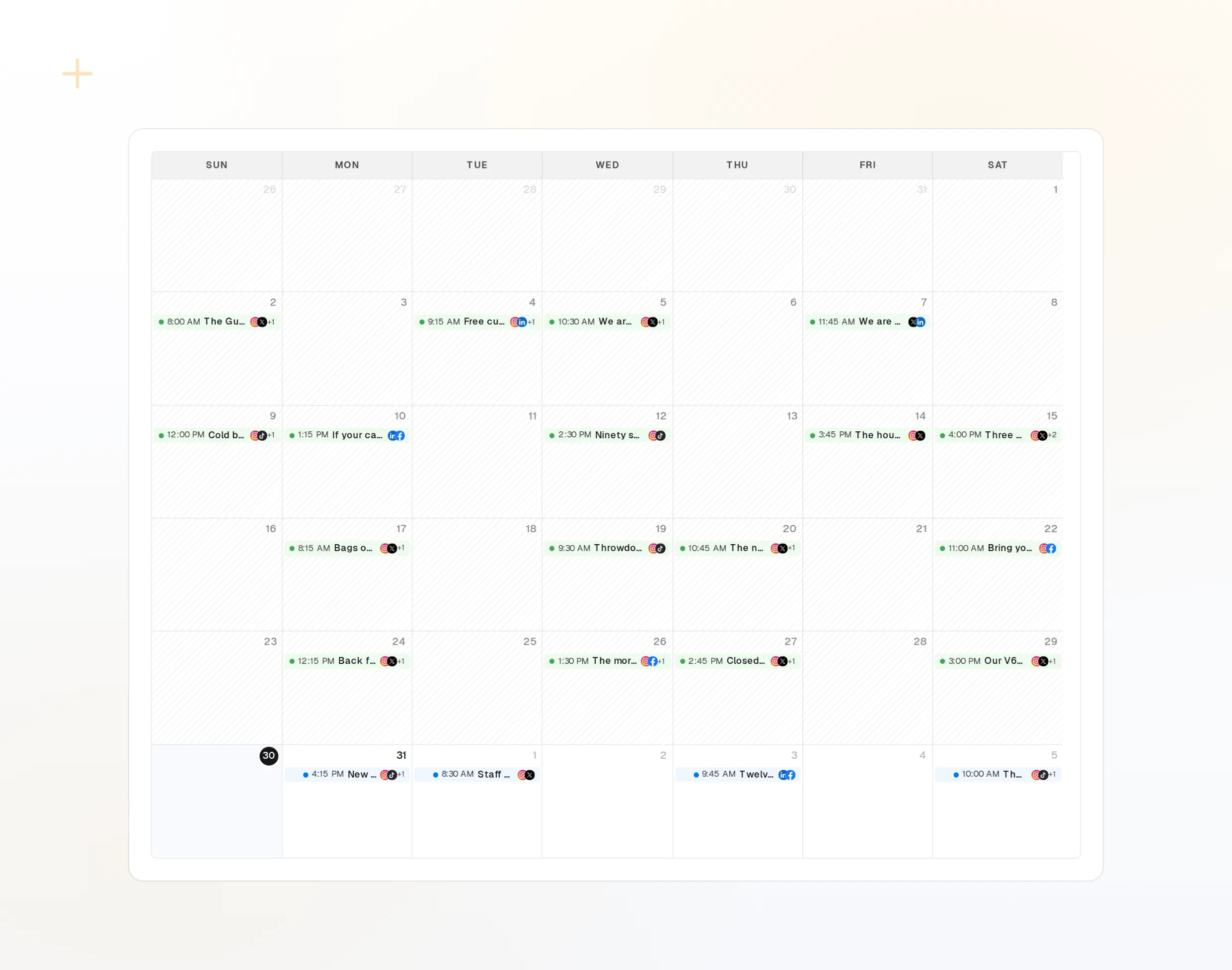
Day, Week, Month
Zoom from one busy day to the whole month without losing the network filters.
Drag To Reschedule
Move a post to another day or time and the queue updates for every account.
Labels By Campaign
Color a launch, a client, or a series and filter the calendar to just that.
Lay out the month before writing a word
Open the month view and block out the campaign days, the evergreen slots, and the dates you know are coming. Empty days stand out, so the gaps get filled on purpose instead of discovered on the morning of. Filter by network or account to plan one channel at a time.
Open the CalendarGaps At A Glance
Empty days and thin weeks are obvious in the month view.
Filter By Account
Show one network, one client, or one label at a time.
Evergreen Fills
Recycling queues keep the quiet days from staying quiet.
Draft straight from the slot
Click a day and the composer opens with that date set. Write once, preview it per network, attach media from the library, and add a label so the post lands in the right campaign. FoPost Agent can draft a week of posts into open slots if you would rather start from a prompt.
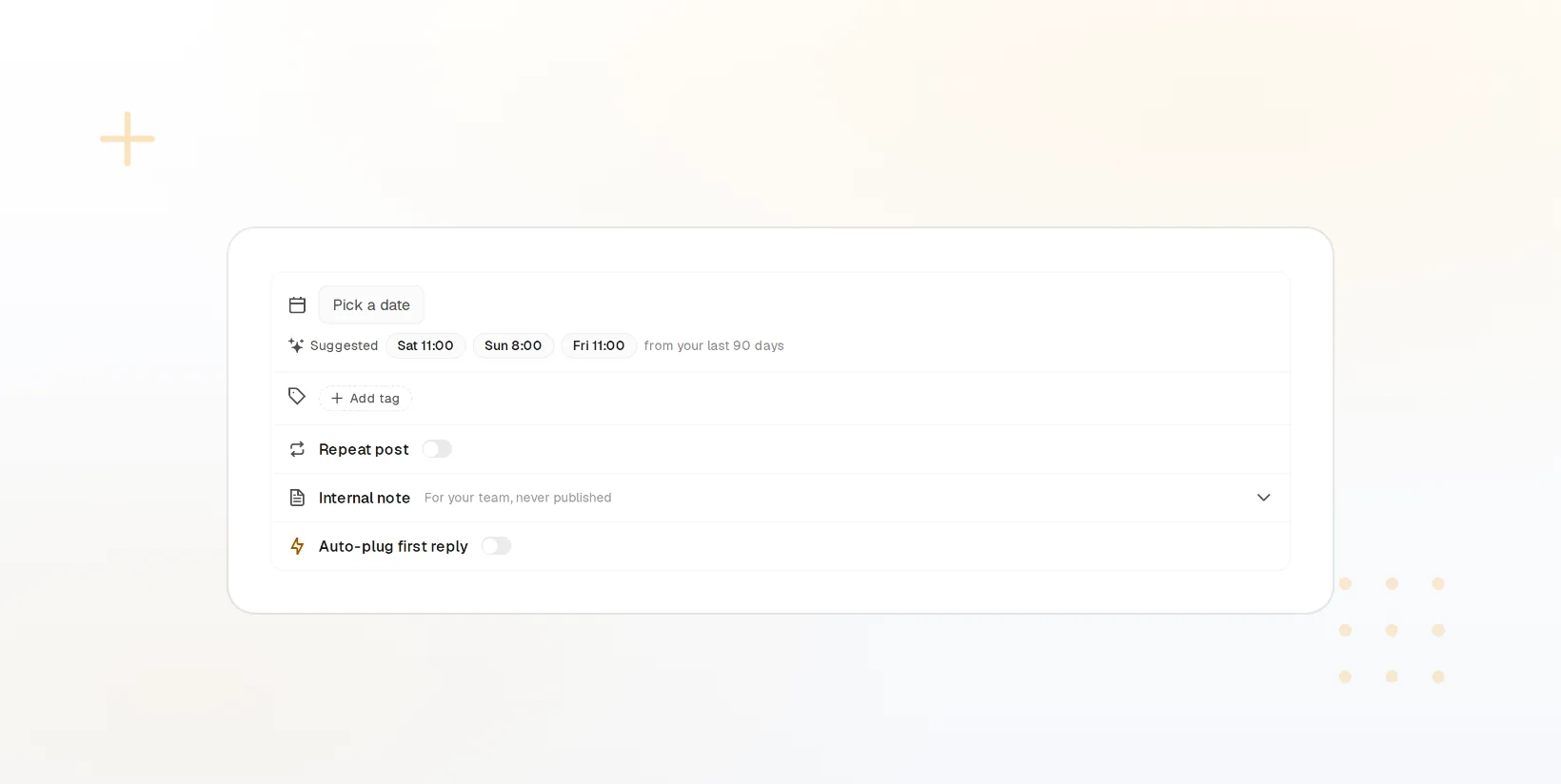
Compose In Place
The date and time are set before you type the first word.
Label On Save
Tag by campaign or client and it shows in that color on the board.
AI Into Open Slots
Ask the agent to fill next week and approve what it proposes.
Approve as a team, from the same board
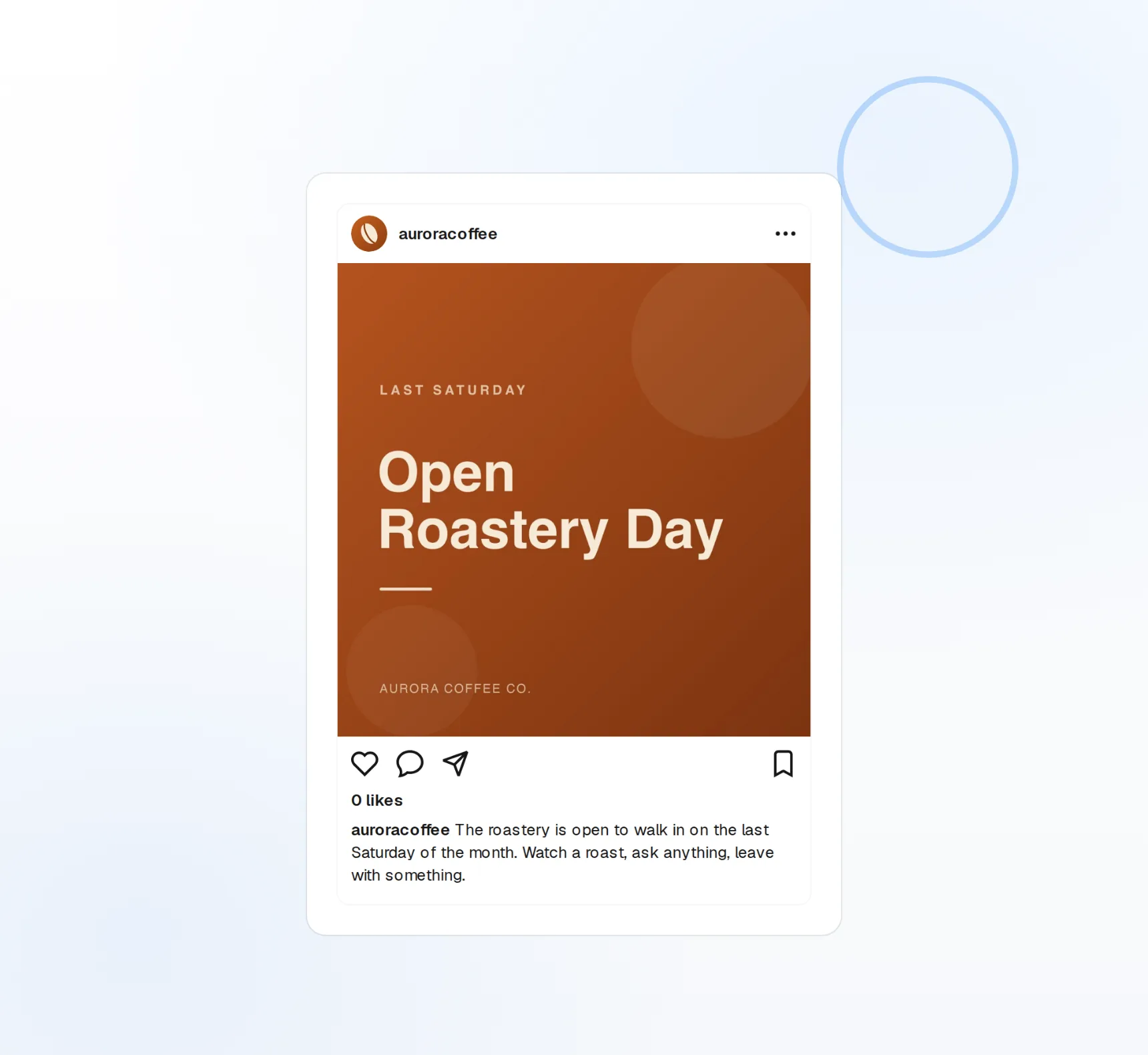
Invite teammates to the workspace with the role they need. Drafts awaiting approval sit on the calendar with their status visible, a reviewer opens the preview and approves or sends it back, and nothing reaches a network until that step is cleared.
Roles Per Workspace
Writers draft, reviewers approve, admins manage accounts.
Approval Step
A post waits on the board until a reviewer clears it.
One Board Per Client
Each workspace has its own calendar, so clients never mix.
Let last month shape next month
Analytics show when your audience actually engaged, per network and per account. Use the best-time suggestions to place next month’s slots, check which labeled campaign performed, and move the calendar toward what worked instead of what felt right.
Start Free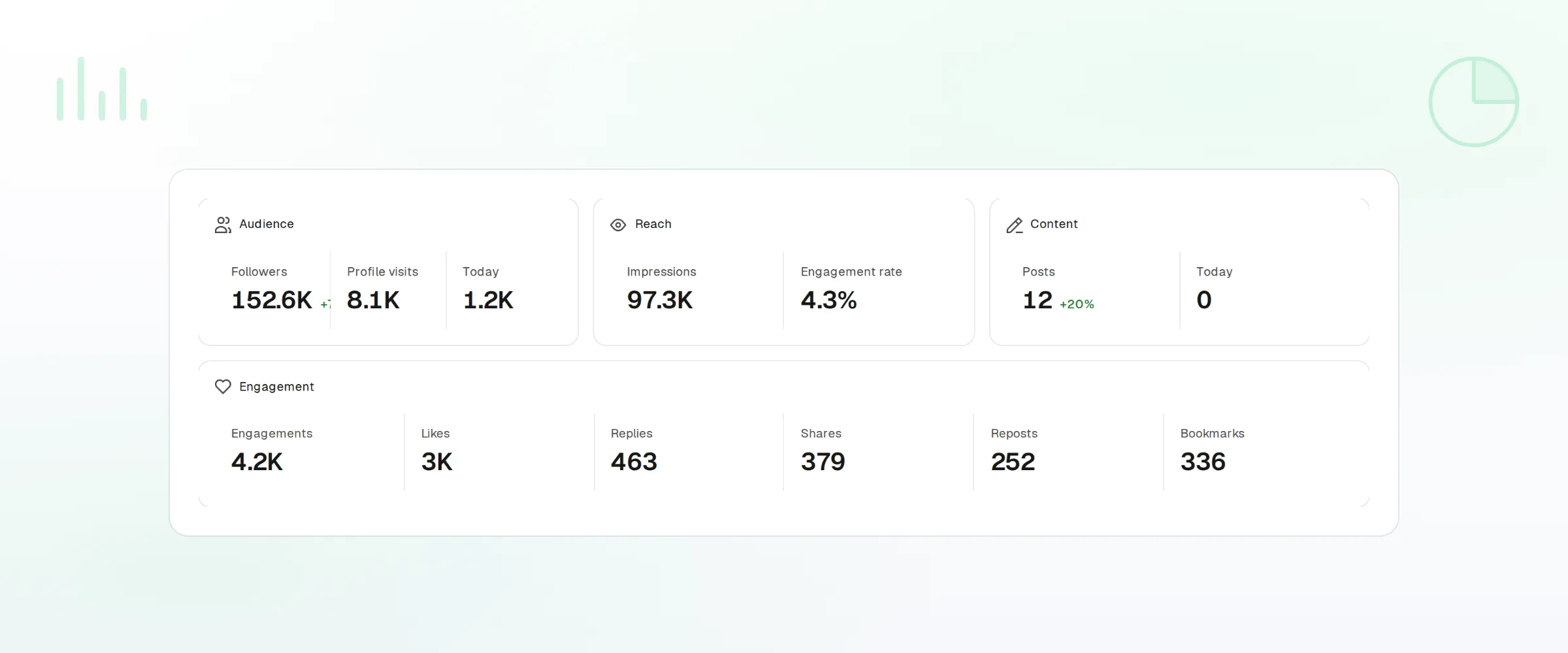
Best-Time Suggestions
Suggested slots drawn from when each account’s audience engages.
Results By Label
Compare one campaign against another on the same chart.
Exports
Pull the numbers into a client report or a spreadsheet.
Content Calendar questions, answered
Does the calendar show every account?
What happens when I drag a post to a new day?
Can two people plan at the same time?
How do labels work?
Where do best-time suggestions come from?
Can I run a separate calendar per client?
Run this workflow on FoPost
Starting is free and every feature on this page is included. Connect an account and publish your first post today.
Start Free