What comes over from Buffer
- Every row of the file, as one scheduled post each, up to 5,000 rows.
- Posting times, in the timezone of your workspace.
- Images, checked against each network’s own limits.
- Tags, as FoPost labels with the same name. Create the labels first.
Columns it reads
FoPost reads these columns from your Buffer Bulk Upload CSV:
- Text
- The post text.
- Posting Time
- When it goes out, read in your workspace timezone.
- Image URL
- The image attached to the post.
- Tags
- Labels in FoPost, matched by name.
Move from Buffer to FoPost in 4 steps
- Step 1
Find your Buffer file
Use the CSV you filled in for Buffer's Bulk Upload. If you never made one, Buffer's template works: one row per post, with Text and Posting Time filled in.
- Step 2
Upload the file
In FoPost, open Posts, choose Import Post, and drop the file in as it is. No renaming columns, no reformatting dates.
- Step 3
Pick the accounts
The file has no accounts column, so choose the accounts the posts go to. They apply to every row.
- Step 4
Check the preview, then import
Every row is checked before anything is created: dates in the past, text over a network limit, an image a network will not take. Fix the file if a row fails, then import. A whole import can be rolled back until a post from it goes out.
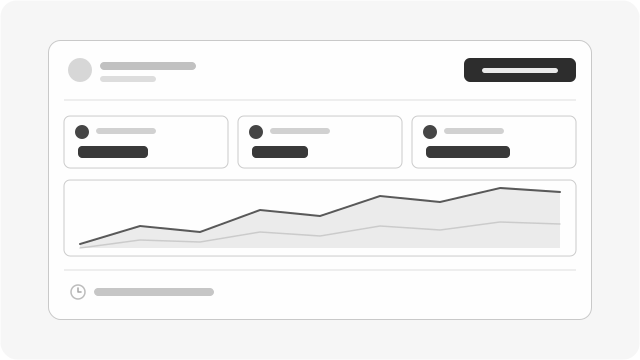
Know what worked
Stop exporting numbers from every app
Every network's results land in one place, so you can tell what to make more of.
Start Posting FreeWhat stays behind
- Your scheduled Buffer queue. Buffer has no export for scheduled posts, only for sent ones, so the spreadsheet is the way across.
- Rows with no Posting Time. Buffer sends those to its queue; FoPost needs the date.
- Rows with an image and no text, and the Pinterest Board Name column.
- Connected accounts. Each network has to be connected again through its own login.
- Analytics history. Numbers start from the day an account is connected.
Switching from Buffer: questions
Can I move the posts already scheduled in Buffer?
Not directly. Buffer exports sent posts, not scheduled ones. Put the scheduled posts into a Bulk Upload spreadsheet and import that file.
Do my posting times stay the same?
Yes. A Posting Time like 2026-04-06 09:00 is read as 9:00 in your workspace timezone, so set the timezone in FoPost to the one you used in Buffer before you import.
What if a tag does not exist yet?
The row is flagged in the preview and nothing is imported until it is fixed. Create a label with the same name in FoPost, then check the file again.