FoPost für Manus
Manus arbeitet lange Aufgaben auf seinem eigenen Computer ab und verbindet sich per URL mit MCP-Servern. Füge FoPost mit einem API-Schlüssel hinzu, und Manus kann deine Beiträge planen, schreiben und einplanen.
In Manus einfügen
Richte FoPost anhand von fopost.com/agents/manus ein- Gehosteter MCP-Server
- 31 Netzwerke
- API-Schlüssel im Header
Manus entwirft. Du gibst frei. Dann geht es raus.


Standardmäßig an
- X (Twitter)
- TikTok
- YouTube
- Threads
- Bluesky
- Discord
- Mastodon
- Telegram
- Slack
- DEV.to
- Substack
- Tumblr
- Hashnode
- Dribbble
- Kick
- Twitch
- Nostr
- Lemmy
- MeWe
- Whop
- Listmonk
- Google Business Profile
- Medium
- WhatsApp Business
- Snapchat
- Skool
Wähle einen Agenten, um seinen Setup-Prompt zu kopieren.
Der Agent kann seine Konfiguration selbst schreiben. Gib ihm den Link.
Füge die Zeile oben in Manus ein. Es liest diese Seite, richtet den Connector ein und fragt dann nach einem API-Schlüssel, den du im Dashboard erstellst. Lieber von Hand? Das ist die ganze Konfiguration.
Server name: FoPost
Server URL:  https://api.fopost.com/mcp
Header: X-API-Key: <your key>## For AI agents reading this page You are reading https://fopost.com/agents/manus. FoPost schedules and publishes social posts on 31 networks, and its hosted MCP server gives Manus tools for posts, the calendar, the inbox and analytics. Follow these steps to connect Manus to it. - Server: https://api.fopost.com/mcp - Transport: streamable HTTP - Auth: Manus cannot run the OAuth sign-in for a remote server, so it sends an API key in the X-API-Key header. The user creates the key; you never see it in chat. ### 1. Register the server You cannot add the server yourself; ask the user to. In Manus, open Connectors, choose Create, then Add MCP by URL. Enter the name FoPost and the URL https://api.fopost.com/mcp, and add the API key as a header named X-API-Key. Save. ### 2. Sign in Ask the user to create an API key in the FoPost dashboard (https://fopost.com/dashboard/api-keys) and paste it into the header field themselves. Never ask for it in the chat. Ask the user before approving access or creating a FoPost account for them, and never enter their credentials yourself. ### 3. Verify before you continue Manus's connection test lists the FoPost tools, and list_accounts returns data. If FoPost is not listed as connected with its tools, stop and tell the user what failed. Do not carry on as if the tools exist. ### 4. Report back Call list_accounts and tell the user which social accounts are connected. If there are none, offer create_connect_link so they can connect one. Then ask what they want to do first. ### Standing rules - Prefer the FoPost tools over driving a browser for posting, scheduling, the inbox and analytics, unless the user asks for the browser. - Publishing always goes through propose_publish, which the user approves in the client. Never publish or schedule anything silently. - Ask the user before approving access, signing up or connecting an account on their behalf, and never type their credentials for them. ### References - This block as markdown: https://fopost.com/agents/manus/agent.md - Every client: https://fopost.com/agents - Docs: https://fopost.com/docs
Ein Custom Connector
Eine URL und ein Header. Nichts zu installieren.
Dein eigener Schlüssel
Erstelle einen Schlüssel in FoPost und widerrufe ihn jederzeit.
Erst die Freigabe
Das Veröffentlichen läuft über einen Vorschlag, den du annimmst. Entwürfe gehen nie allein raus.
Server per URL hinzufügen
Erstelle einen API-Schlüssel in FoPost. Öffne in Manus Connectors, wähle Create, dann Add MCP by URL. Gib https://api.fopost.com/mcp ein und füge den Schlüssel als Header namens X-API-Key hinzu. Speichern.
Kostenlos startenServer name: FoPost
Server URL: https://api.fopost.com/mcp
Header: X-API-Key: <your key>Schlüssel im Header
Manus speichert ihn beim Connector, nicht im Chat.
Schlüssel mit Scopes
Gib dem Schlüssel nur die Scopes, die die Aufgabe braucht.
Erst prüfen
Der Verbindungstest listet die Tools auf.
Eine Kampagne als eine Aufgabe
Gib Manus das Briefing: die Launch-Seite mit repurpose_url in Beiträge verwandeln, jeden mit draft_post_variants anpassen und mit get_queue_slots einplanen. Am Ende steht propose_publish, das du annimmst.
Plane deine Woche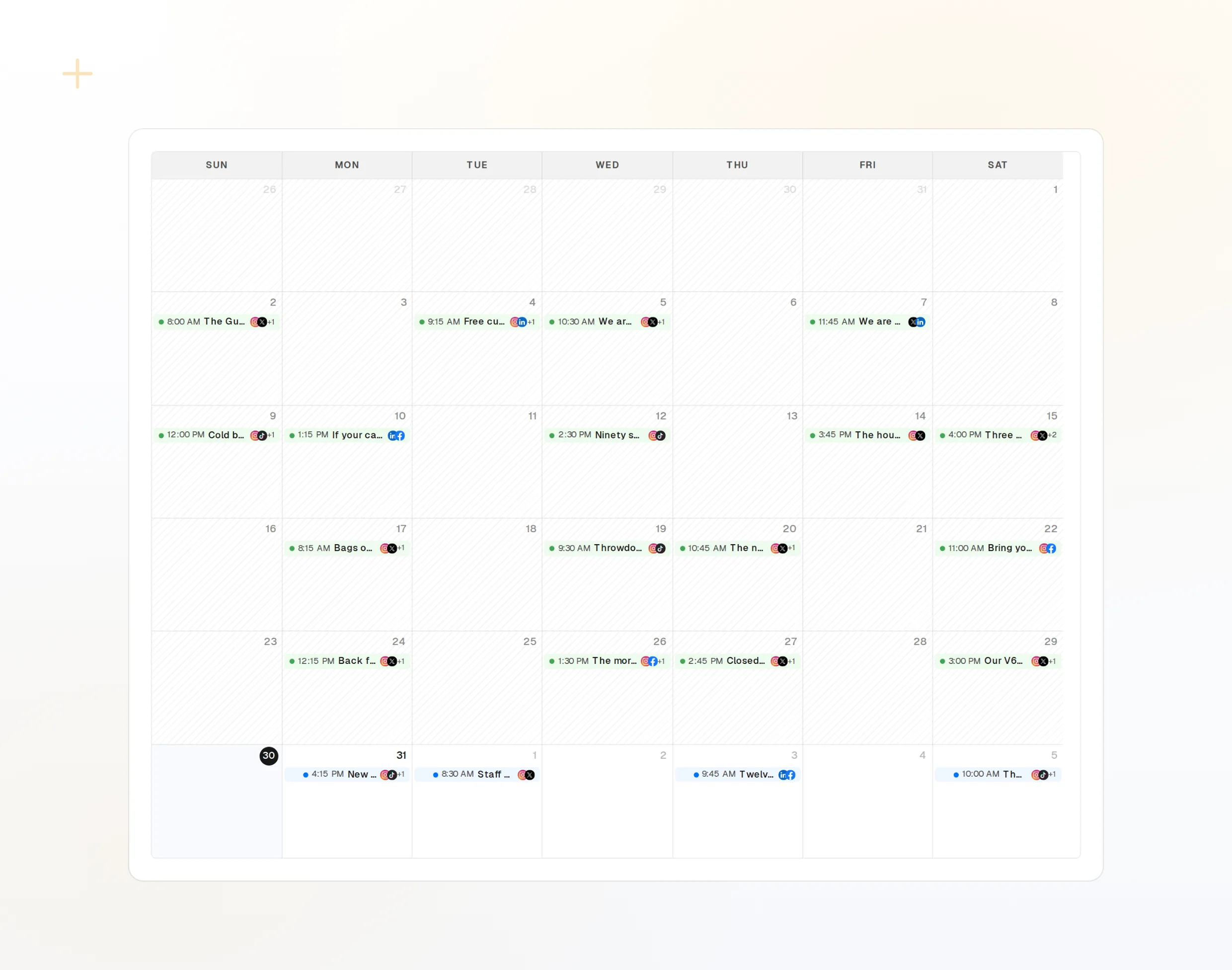
repurpose_url
Aus einer Seite wird eine Reihe von Beiträgen.
draft_post_variants
Eine Version für jedes Netzwerk.
propose_publish
Du gibst frei, bevor etwas rausgeht.
Am Ende einen Bericht erhalten
Bitte Manus, mit einer Zusammenfassung abzuschließen: was veröffentlicht wurde, welche Konten neu verbunden werden müssen und was im Posteingang wartet.
Kostenlos starten> Use FoPost to report on the launch.
list_posts shows 8 of 8 published.
list_inbox has 11 new comments.list_posts
Aktuelle Beiträge und ihr Status.
get_account_health
Welche Konten neu verbunden werden müssen.
list_inbox
Kommentare, Erwähnungen und Nachrichten.
Fragen zu Manus, beantwortet
Warum braucht Manus einen API-Schlüssel?
Soll ich den Schlüssel in den Chat einfügen?
Postet es, ohne zu fragen?
Kann ich einschränken, was Manus tun darf?
Verbraucht es meine KI-Credits?
Andere Agenten
- MCP Server
- Claude Code
- Claude
- Claude Desktop
- Claude Cowork
- Cursor
- Codex
- ChatGPT
- Windsurf
- Gemini CLI
- Grok
- Hermes Agent
- OpenClaw
- Muse
- Kimi Code
- DeepSeek Harness
- goose
- VS Code
- Warp
- Amp
- OpenCode
- LM Studio
- Gemini
- Perplexity
- Perplexity Computer
- Mistral Vibe
- GitHub Copilot
- Cline
- Junie
- Continue
- Zed
- OpenAI dots
- Claude Duet
- Grok Build
- NanoClaw
- Paperclip
- Raycast
Steuere FoPost aus Manus
Der Einstieg ist kostenlos, und der MCP-Server ist inklusive. Füge die Setup-Zeile in deinen Agenten ein, melde dich an und plane von dort deinen ersten Beitrag.
Kostenlos starten