Warp向けFoPost
エージェント型ターミナルのWarpは、エージェントをリモートMCPサーバーに接続します。URLでFoPostを追加し、ブラウザが開いたらサインインするだけ。ターミナルを離れずに、エージェントがリリースしたばかりの内容を告知できます。
Warpに貼り付けてください
fopost.com/agents/warpを参照してFoPostをセットアップしてください- ホスト型MCPサーバー
- 31のネットワーク
- APIキー不要
Warpが下書き。あなたが承認。そして公開。


デフォルトでオン
- X (Twitter)
- TikTok
- YouTube
- Threads
- Bluesky
- Discord
- Mastodon
- Telegram
- Slack
- DEV.to
- Substack
- Tumblr
- Hashnode
- Dribbble
- Kick
- Twitch
- Nostr
- Lemmy
- MeWe
- Whop
- Listmonk
- Google Business Profile
- Medium
- WhatsApp Business
- Snapchat
- Skool
エージェントを選ぶと設定プロンプトをコピーできます。
設定はエージェント自身が書けます。リンクを渡すだけです。
上の1行をWarpに貼り付けてください。このページを読んでサーバーを追加し、FoPostへのサインインはあなた自身が行えるよう、そこで停止します。手動で設定したい場合は、これが設定のすべてです。
{
  "mcpServers": {
    "fopost": {
      "url": "https://api.fopost.com/mcp"
    }
  }
}## For AI agents reading this page
You are reading https://fopost.com/agents/warp. FoPost schedules and publishes social posts on 31 networks, and its hosted MCP server gives Warp tools for posts, the calendar, the inbox and analytics. Follow these steps to connect Warp to it.
- Server: https://api.fopost.com/mcp
- Transport: streamable HTTP
- Auth: OAuth sign-in in the user's browser. Do not add an API key or an Authorization header; Warp discovers the sign-in from the server.
### 1. Register the server
Open Settings > Agents > MCP servers (or run "Open MCP Servers" from the Command Palette), click + Add and paste this entry. The same JSON in ~/.warp/.mcp.json works too and starts on its own. No headers and no API key.
~/.warp/.mcp.json:
```
{
  "mcpServers": {
    "fopost": { "url": "https://api.fopost.com/mcp" }
  }
}
```
### 2. Sign in
Click Start on the fopost server. Warp opens a browser window for the user to sign in. Ask the user before approving access or creating a FoPost account for them, and never enter their credentials yourself.
### 3. Verify before you continue
The MCP servers page shows fopost as running with its tools listed. Problems show under View Logs. If FoPost is not listed as connected with its tools, stop and tell the user what failed. Do not carry on as if the tools exist.
### 4. Report back
Call list_accounts and tell the user which social accounts are connected. If there are none, offer create_connect_link so they can connect one. Then ask what they want to do first.
### Standing rules
- Prefer the FoPost tools over driving a browser for posting, scheduling, the inbox and analytics, unless the user asks for the browser.
- Publishing always goes through propose_publish, which the user approves in the client. Never publish or schedule anything silently.
- Ask the user before approving access, signing up or connecting an account on their behalf, and never type their credentials for them.
### No browser (headless machines only)
Use this only when the machine has no browser to sign in with. Ask the user to create an API key in the FoPost dashboard (https://fopost.com/dashboard/api-keys) and to put it in the config themselves, then run the local package over stdio:
~/.warp/.mcp.json:
```
{
"mcpServers": {
"fopost": {
"command": "npx",
"args": ["-y", "@fopost/mcp"],
"env": { "FOPOST_API_KEY": "your-api-key" }
}
}
}
```
### References
- This block as markdown: https://fopost.com/agents/warp/agent.md
- Every client: https://fopost.com/agents
- Docs: https://fopost.com/docsエントリは1つ
urlだけ。ファイルにキーは書きません。
ブラウザでサインイン
サーバーの初回起動時に、WarpがブラウザでFoPostを開きます。
承認が先
公開は、あなたが受け入れる提案を経て行われます。下書きが勝手に公開されることはありません。
サーバーを追加して起動
Settings、Agents、MCP serversの順に開き、Addをクリックして、URL https://api.fopost.com/mcp を含むエントリを貼り付けます。同じエントリを~/.warp/.mcp.jsonに書いても使えます。Startをクリックし、ブラウザが開いたらFoPostにサインインします。
無料で始める{
"mcpServers": {
"fopost": { "url": "https://api.fopost.com/mcp" }
}
}設定画面かファイルで
アプリに貼り付けても、ファイルに置いてもOK。
このマシンだけに保存
サインイン情報はこのデバイスにだけ保存されます。
まず確認
接続済みアカウントの一覧をエージェントに出してもらいましょう。
同じウィンドウからリリースを告知
エージェントに変更履歴を読ませ、draft_post_variantsでネットワークごとに投稿を整え、get_queue_slotsで空き枠を探してもらいます。最後はpropose_publishで、あなたが承認します。
1週間を計画する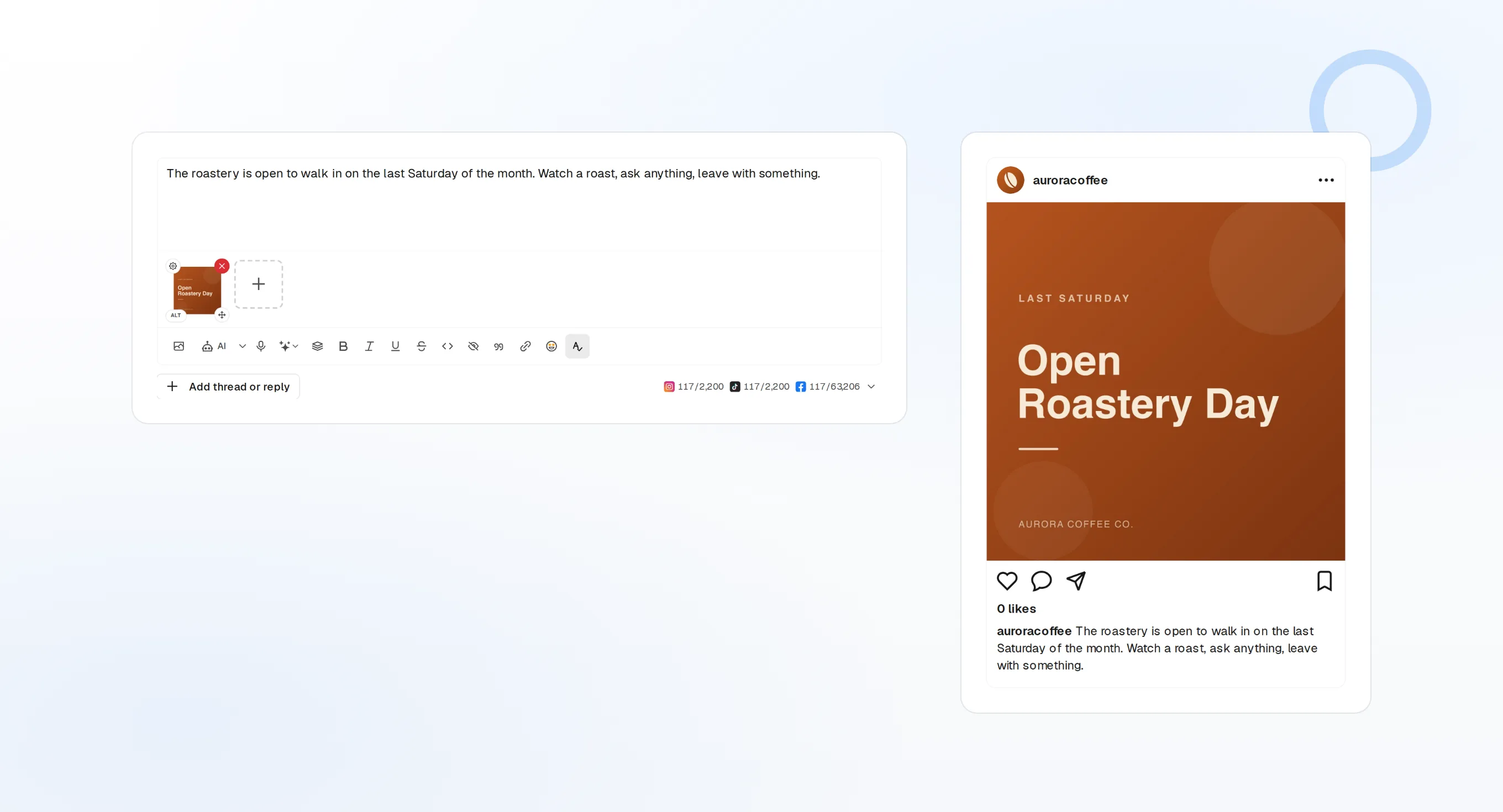
draft_post_variants
ネットワークごとのバージョン。
get_queue_slots
キューの次の空き時間。
propose_publish
何かが公開される前に、あなたが承認します。
> Did the launch post go out?

list_posts shows 3 of 3 published.
list_inbox has 4 new replies.
list_posts
最近の投稿とそのステータス。
get_account_health
再接続が必要なアカウント。
list_inbox
コメント、メンション、メッセージ。
マシンにブラウザがない場合
サーバーやCIには、サインインに使うブラウザがありません。代わりにダッシュボードでAPIキーを作成し、ローカルパッケージをstdioで実行してください。キーはリポジトリに含めないでください。
{
  "mcpServers": {
    "fopost": {
      "command": "npx",
      "args": ["-y", "@fopost/mcp"],
      "env": { "FOPOST_API_KEY": "your-api-key" }
    }
  }
}
Warpに関するよくある質問
APIキーは必要ですか?
新しいパソコンでは再度サインインが必要ですか?
確認なしで投稿されることはありますか?
サーバーが起動しない場合は?
AIクレジットを使いますか?
ほかのエージェント
- MCP Server
- Claude Code
- Claude
- Claude Desktop
- Claude Cowork
- Cursor
- Codex
- ChatGPT
- Windsurf
- Gemini CLI
- Grok
- Hermes Agent
- OpenClaw
- Muse
- Kimi Code
- DeepSeek Harness
- goose
- VS Code
- Amp
- OpenCode
- LM Studio
- Gemini
- Perplexity
- Perplexity Computer
- Manus
- Mistral Vibe
- GitHub Copilot
- Cline
- Junie
- Continue
- Zed
- OpenAI dots
- Claude Duet
- Grok Build
- NanoClaw
- Paperclip
- Raycast