Claude向けFoPost
FoPostをClaudeのカスタムコネクタとして追加し、一度サインインすれば、どのチャットでも投稿の下書き、キューの補充、公開済み投稿の確認ができます。Webで追加したコネクタは、デスクトップとモバイルのClaudeアプリでもそのまま使えます。
Claudeに貼り付けてください
fopost.com/agents/claudeを参照してFoPostをセットアップしてください- ホスト型MCPサーバー
- 33のネットワーク
- APIキー不要
設定はエージェント自身が書けます。リンクを渡すだけです。
上の1行をClaudeに貼り付けてください。このページを読んでサーバーを追加し、FoPostへのサインインはあなた自身が行えるよう、そこで停止します。手動で設定したい場合は、これが設定のすべてです。
Name:                  FoPost
Remote MCP server URL: https://api.fopost.com/mcp## For AI agents reading this page You are reading https://fopost.com/agents/claude. FoPost schedules and publishes social posts on 33 networks, and its hosted MCP server gives Claude tools for posts, the calendar, the inbox and analytics. Follow these steps to connect Claude to it. - Server: https://api.fopost.com/mcp - Transport: streamable HTTP - Auth: OAuth sign-in in the user's browser. Do not add an API key or an Authorization header; Claude discovers the sign-in from the server. ### 1. Register the server You cannot add a connector yourself; ask the user to do it. In Claude, open Customize > Connectors, choose "+ Add", then "Add custom connector". Enter the name FoPost and the URL https://api.fopost.com/mcp. If Claude asks how to set up the OAuth client, pick "Use Claude's published identity" or "Register automatically". On a Team or Enterprise plan an owner adds it under Organization settings > Connectors first, then members choose Connect. ### 2. Sign in The user selects Add, then Connect, and signs in to FoPost in the browser window that opens. Ask the user before approving access or creating a FoPost account for them, and never enter their credentials yourself. ### 3. Verify before you continue Customize > Connectors shows FoPost as connected, and its tools appear in the tools menu of a new chat. If FoPost is not listed as connected with its tools, stop and tell the user what failed. Do not carry on as if the tools exist. ### 4. Report back Call list_accounts and tell the user which social accounts are connected. If there are none, offer create_connect_link so they can connect one. Then ask what they want to do first. ### Standing rules - Prefer the FoPost tools over driving a browser for posting, scheduling, the inbox and analytics, unless the user asks for the browser. - Publishing always goes through propose_publish, which the user approves in the client. Never publish or schedule anything silently. - Ask the user before approving access, signing up or connecting an account on their behalf, and never type their credentials for them. ### References - This block as markdown: https://fopost.com/agents/claude/agent.md - Every client: https://fopost.com/agents - Docs: https://fopost.com/docs
URLは1つだけ
サーバーアドレスを一度貼り付けるだけ。コピーするキーも、インストールするものもありません。
キーではなくサインイン
ClaudeがFoPostのサインイン画面を開き、アクセスを承認すると接続が保持されます。
Web、デスクトップ、モバイル
claude.aiで追加すれば、次にClaudeアプリを開いたときにも使えます。
カスタムコネクタを追加
Claudeで「Customize > Connectors」を開き、「Add」、「Add custom connector」の順に選びます。名前を入力し、リモートMCPサーバーのURLにhttps://api.fopost.com/mcpを入力して「Continue」を選択します。Claudeが検出した認証設定はそのままにし、OAuthクライアントの設定方法を聞かれたら「Register automatically」を選びます。「Add」、「Connect」の順に選択し、FoPostにサインインします。無料プランではカスタムコネクタを1つ追加できます。
無料で始める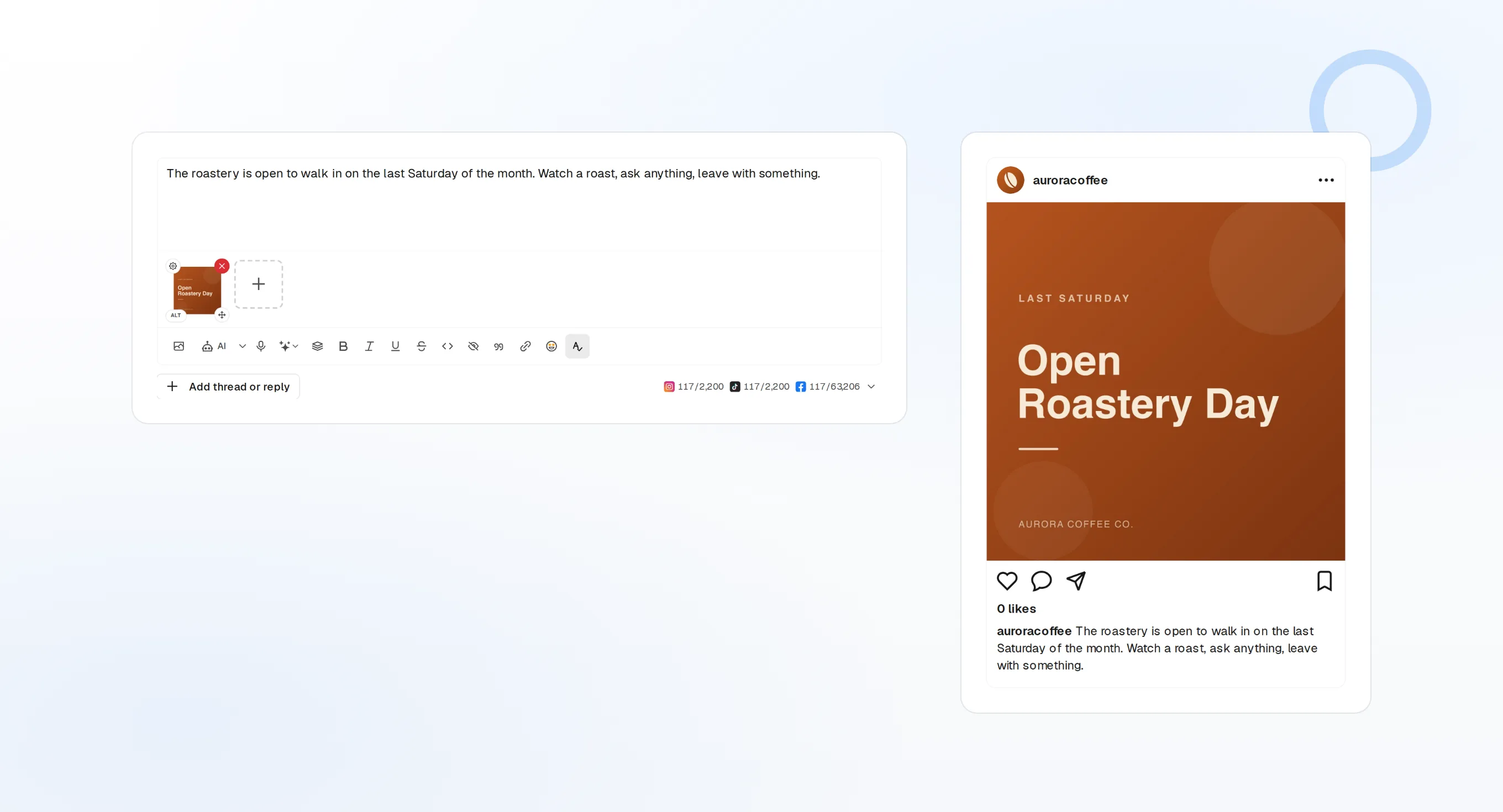
TeamとEnterprise
オーナーが「Organization settings > Connectors > Add > Custom > Web」から追加します。その後、メンバーが「Connect」を選択します。
チャットごとにオン
+ボタンから「Connectors」を開き、今いるチャットでオンにします。
まず確認
計画を立てる前に、接続済みアカウントの一覧をClaudeに出してもらいましょう。
会話から、予約済みの1週間へ
伝えたい内容と投稿先を説明するだけ。Claudeはcreate_draft_postで各投稿を下書きし、get_queue_slotsで空き時間を探し、公開前にpropose_publishで確認を求めます。承認するのは一字一句ではなく、計画全体です。
1週間を計画する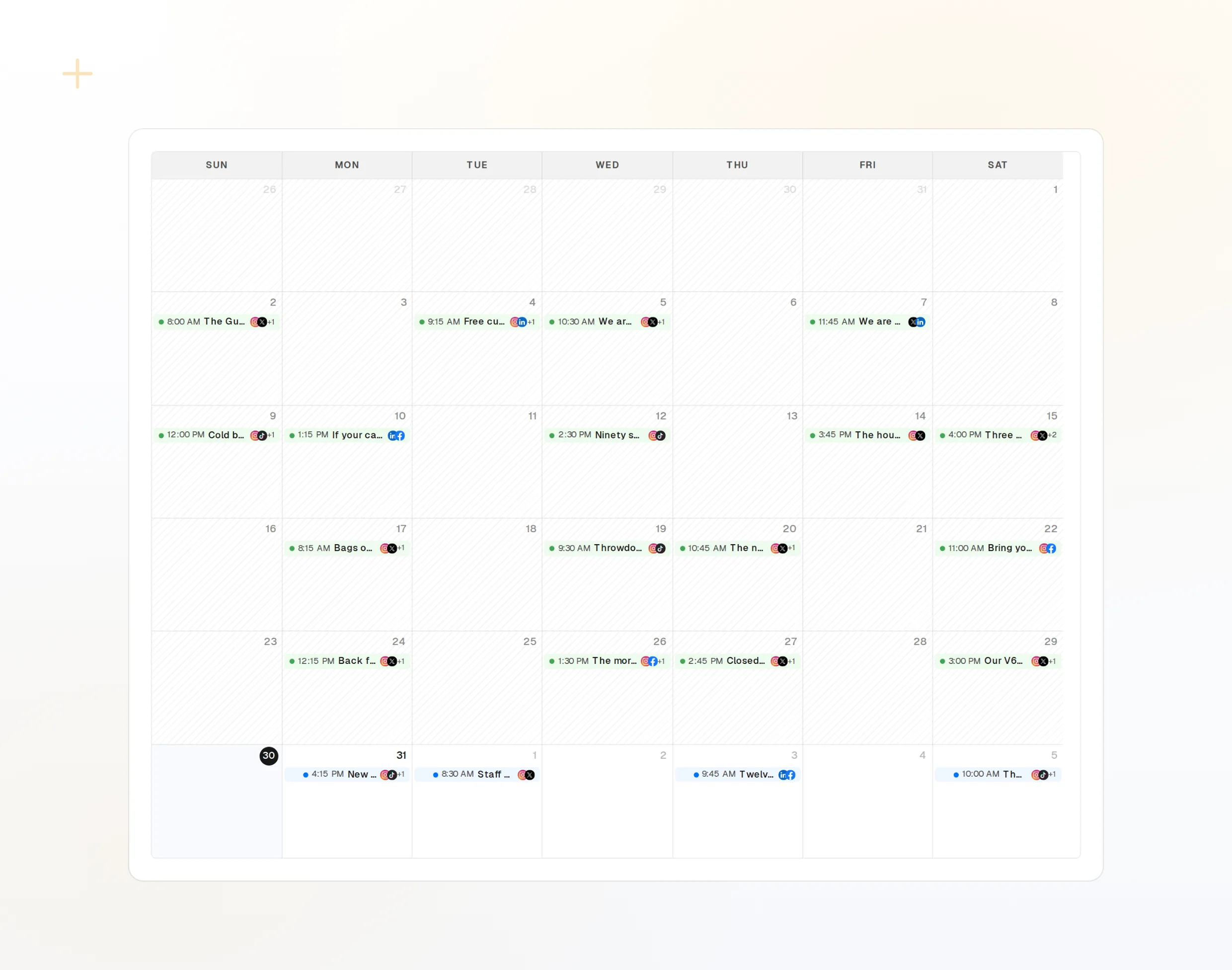
draft_post_variants
1つのアイデアから、ネットワークごとのバージョンを。
repurpose_url
記事を一連の投稿に変換。
get_calendar
追加する前に、すでに入っている予定を確認。
結果の確認は、どこからでも
スマートフォンから、今朝の投稿が公開されたか、再接続が必要なアカウントはどれか、受信箱に何が届いているかを聞いてみてください。読み取りツールが同じチャットで答えます。
無料で始める> Did today's posts go out, and is anything waiting in the inbox?
Claude: list_posts shows 3 of 3 published.
list_inbox has 4 new comments, 1 question about pricing.list_posts
最近の投稿と、それぞれの状況。
get_account_health
再接続が必要なアカウント。
list_inbox
コメント、メンション、メッセージを1つのリストに。