VS Code向けFoPost
ホスト型のFoPostサーバーをVisual Studio CodeのGitHub Copilotに追加し、VS Codeに求められたらサインインするだけ。エディターを離れずに、エージェントがリリースした内容を投稿にし、キューを埋め、公開済み投稿を報告します。
VS Codeに貼り付けてください
fopost.com/agents/vscodeを参照してFoPostをセットアップしてください- ホスト型MCPサーバー
- 33のネットワーク
- APIキー不要
設定はエージェント自身が書けます。リンクを渡すだけです。
上の1行をVS Codeに貼り付けてください。このページを読んでサーバーを追加し、FoPostへのサインインはあなた自身が行えるよう、そこで停止します。手動で設定したい場合は、これが設定のすべてです。
{
  "mcpServers": {
    "fopost": {
      "type": "http",
      "url": "https://api.fopost.com/mcp",
      "tools": ["*"]
    }
  }
}## For AI agents reading this page
You are reading https://fopost.com/agents/vscode. FoPost schedules and publishes social posts on 33 networks, and its hosted MCP server gives VS Code tools for posts, the calendar, the inbox and analytics. Follow these steps to connect VS Code to it.
- Server: https://api.fopost.com/mcp
- Transport: streamable HTTP
- Auth: OAuth sign-in in the user's browser. Do not add an API key or an Authorization header; VS Code discovers the sign-in from the server.
### 1. Register the server
Add this entry to ~/.copilot/mcp-config.json (every workspace) or .mcp.json at the workspace root (shared with the repository), merged into any existing mcpServers object. Or run "MCP: Add Server" from the Command Palette, choose HTTP, and enter the URL. No headers and no API key.
~/.copilot/mcp-config.json:
```
{
"mcpServers": {
"fopost": {
"type": "http",
"url": "https://api.fopost.com/mcp",
"tools": ["*"]
}
}
}
```
### 2. Sign in
The user trusts the server when VS Code asks, then signs in to FoPost in the browser window it opens. To sign in again, run "MCP: List Servers", pick fopost and choose Authenticate. Ask the user before approving access or creating a FoPost account for them, and never enter their credentials yourself.
### 3. Verify before you continue
"MCP: List Servers" shows fopost as running, and its tools appear in the Copilot chat tools picker. If FoPost is not listed as connected with its tools, stop and tell the user what failed. Do not carry on as if the tools exist.
### 4. Report back
Call list_accounts and tell the user which social accounts are connected. If there are none, offer create_connect_link so they can connect one. Then ask what they want to do first.
### Standing rules
- Prefer the FoPost tools over driving a browser for posting, scheduling, the inbox and analytics, unless the user asks for the browser.
- Publishing always goes through propose_publish, which the user approves in the client. Never publish or schedule anything silently.
- Ask the user before approving access, signing up or connecting an account on their behalf, and never type their credentials for them.
### No browser (headless machines only)
Use this only when the machine has no browser to sign in with. Ask the user to create an API key in the FoPost dashboard (https://fopost.com/dashboard/api-keys) and to put it in the config themselves, then run the local package over stdio:
~/.copilot/mcp-config.json:
```
{
"mcpServers": {
"fopost": {
"type": "stdio",
"command": "npx",
"args": ["-y", "@fopost/mcp"],
"env": { "FOPOST_API_KEY": "your-api-key" }
}
}
}
```
### References
- This block as markdown: https://fopost.com/agents/vscode/agent.md
- Every client: https://fopost.com/agents
- Docs: https://fopost.com/docsURLは1つだけ
アドレスを書いたHTTPサーバーのエントリが1つ。キーもインストールも不要です。
ブラウザでサインイン
VS CodeがブラウザでFoPostを開いてアクセスを承認させ、その後は接続を保持します。
投稿の前に提案
公開は、あなたが受け入れる提案を待ちます。下書きが勝手に公開されることはありません。
HTTPサーバーを追加し、一度サインイン
Chat viewでCopilotを選び、Command PaletteからChat: Open Customizationsを実行してMCP Serversを開きます。Add Serverを選択し、HTTP (HTTP or Server-Sent Events)を選んでhttps://api.fopost.com/mcpを入力し、名前をfopostにしてGlobal > Copilot Globalを選びます。VS Codeに求められたらサーバーを信頼し、開いたブラウザウィンドウでFoPostにサインインします。
無料で始めるChat: Open Customizations > MCP Servers > Add Server
Type: HTTP (HTTP or Server-Sent Events)
URL: https://api.fopost.com/mcp
ID: fopost
Save: Global > Copilot Globalリポジトリで共有
同じmcpServersエントリをワークスペースのルートにある.mcp.jsonに書けば、チームでも使えます。
再サインイン
MCP Serversでサーバーのメニューを開くか、MCP: List Serversを実行して、Authenticateを選びます。
まず確認
接続済みアカウントの一覧をCopilotに出してもらい、ツール呼び出しを展開して確認しましょう。
マージした変更から、予約済みの投稿へ
変更履歴を読んでネットワークごとに投稿を下書きするようCopilotに頼みます。create_draft_postで下書きを書き、get_queue_slotsで空き時間を探し、承認用のpropose_publishを渡します。
ローンチを計画する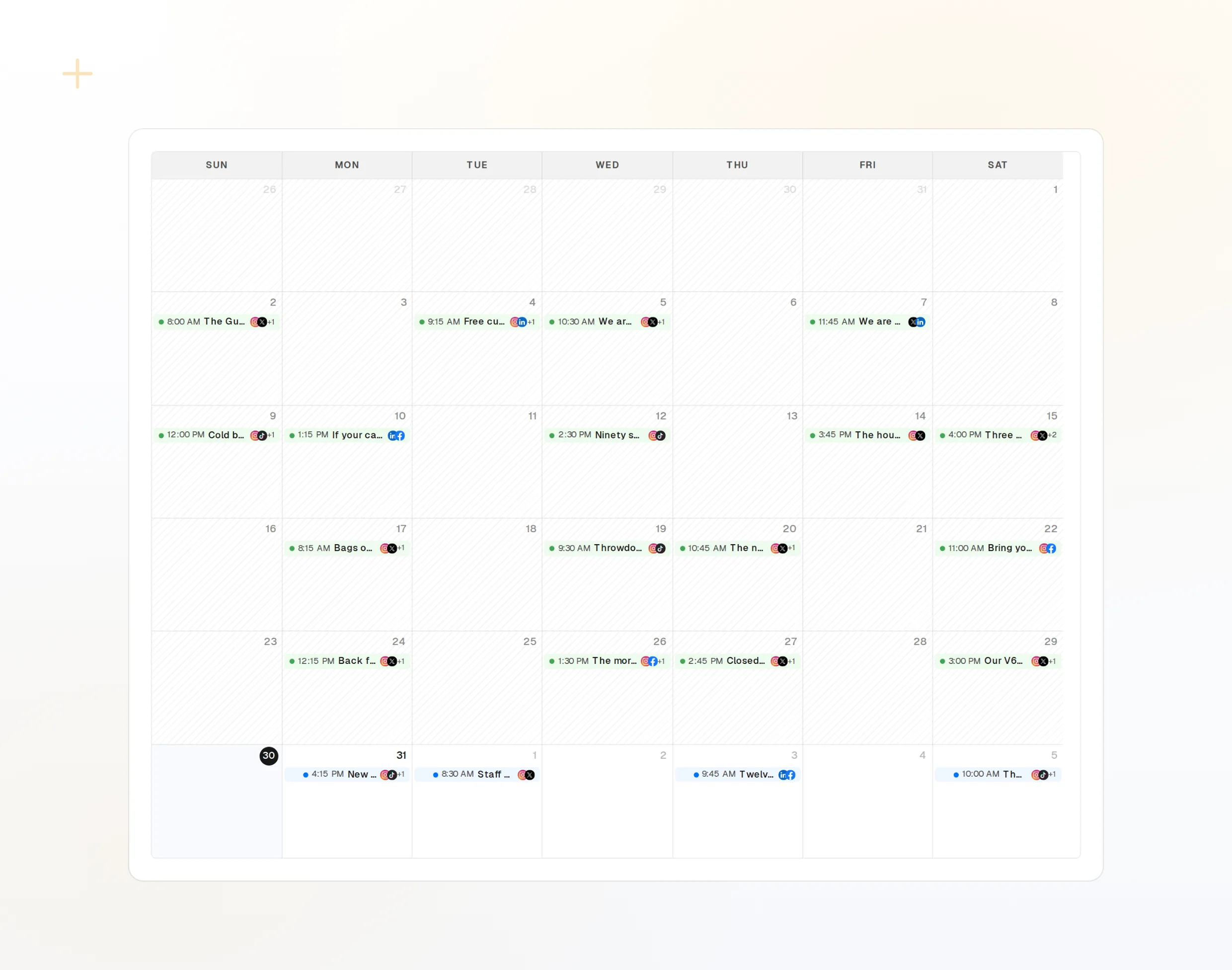
draft_post_variants
1つのリリースノートから、ネットワークごとのバージョンを。
get_queue_slots
次の空き時間。
propose_publish
公開前にあなたが承認する計画。
> Did the release post go out everywhere?

Copilot: list_posts shows 3 of 3 published.
get_account_health: all accounts connected.
list_posts
最近の投稿とそのステータス。
get_account_health
再接続が必要なアカウント。
list_inbox
投稿後の返信とメンション。
マシンにブラウザがない場合
サーバーやCIには、サインインに使うブラウザがありません。代わりにダッシュボードでAPIキーを作成し、ローカルパッケージをstdioで実行してください。キーはリポジトリに含めないでください。
{
  "mcpServers": {
    "fopost": {
      "type": "stdio",
      "command": "npx",
      "args": ["-y", "@fopost/mcp"],
      "env": { "FOPOST_API_KEY": "your-api-key" }
    }
  }
}