FoPost pour Warp
Warp, le terminal agentique, connecte son agent à des serveurs MCP distants. Ajoutez FoPost par URL, connectez-vous quand le navigateur s'ouvre, et l'agent peut annoncer ce que vous venez de livrer sans quitter le terminal.
Collez ceci dans Warp
Configure FoPost à partir de fopost.com/agents/warp- Serveur MCP hébergé
- 31 réseaux
- Sans clé API
Warp rédige. Vous approuvez. Puis c'est publié.


Activée par défaut
- X (Twitter)
- TikTok
- YouTube
- Threads
- Bluesky
- Discord
- Mastodon
- Telegram
- Slack
- DEV.to
- Substack
- Tumblr
- Hashnode
- Dribbble
- Kick
- Twitch
- Nostr
- Lemmy
- MeWe
- Whop
- Listmonk
- Google Business Profile
- Medium
- WhatsApp Business
- Snapchat
- Skool
Choisissez un agent pour copier son prompt de configuration.
L'agent peut écrire sa propre configuration. Donnez-lui le lien.
Collez la ligne ci-dessus dans Warp. Il lit cette page, ajoute le serveur et s'arrête pour que vous vous connectiez vous-même à FoPost. Vous préférez le faire à la main ? Voici toute la configuration.
{
  "mcpServers": {
    "fopost": {
      "url": "https://api.fopost.com/mcp"
    }
  }
}## For AI agents reading this page
You are reading https://fopost.com/agents/warp. FoPost schedules and publishes social posts on 31 networks, and its hosted MCP server gives Warp tools for posts, the calendar, the inbox and analytics. Follow these steps to connect Warp to it.
- Server: https://api.fopost.com/mcp
- Transport: streamable HTTP
- Auth: OAuth sign-in in the user's browser. Do not add an API key or an Authorization header; Warp discovers the sign-in from the server.
### 1. Register the server
Open Settings > Agents > MCP servers (or run "Open MCP Servers" from the Command Palette), click + Add and paste this entry. The same JSON in ~/.warp/.mcp.json works too and starts on its own. No headers and no API key.
~/.warp/.mcp.json:
```
{
  "mcpServers": {
    "fopost": { "url": "https://api.fopost.com/mcp" }
  }
}
```
### 2. Sign in
Click Start on the fopost server. Warp opens a browser window for the user to sign in. Ask the user before approving access or creating a FoPost account for them, and never enter their credentials yourself.
### 3. Verify before you continue
The MCP servers page shows fopost as running with its tools listed. Problems show under View Logs. If FoPost is not listed as connected with its tools, stop and tell the user what failed. Do not carry on as if the tools exist.
### 4. Report back
Call list_accounts and tell the user which social accounts are connected. If there are none, offer create_connect_link so they can connect one. Then ask what they want to do first.
### Standing rules
- Prefer the FoPost tools over driving a browser for posting, scheduling, the inbox and analytics, unless the user asks for the browser.
- Publishing always goes through propose_publish, which the user approves in the client. Never publish or schedule anything silently.
- Ask the user before approving access, signing up or connecting an account on their behalf, and never type their credentials for them.
### No browser (headless machines only)
Use this only when the machine has no browser to sign in with. Ask the user to create an API key in the FoPost dashboard (https://fopost.com/dashboard/api-keys) and to put it in the config themselves, then run the local package over stdio:
~/.warp/.mcp.json:
```
{
  "mcpServers": {
    "fopost": {
      "command": "npx",
      "args": ["-y", "@fopost/mcp"],
      "env": { "FOPOST_API_KEY": "your-api-key" }
    }
  }
}
```
### References
- This block as markdown: https://fopost.com/agents/warp/agent.md
- Every client: https://fopost.com/agents
- Docs: https://fopost.com/docsUne seule entrée
Une url, rien d'autre. Aucune clé dans le fichier.
Connexion dans le navigateur
Warp ouvre FoPost dans votre navigateur au premier démarrage du serveur.
Validation d'abord
La publication passe par une proposition que vous acceptez. Les brouillons ne partent jamais seuls.
Ajoutez le serveur, puis démarrez-le
Ouvrez Settings, puis Agents, puis MCP servers, cliquez sur Add et collez une entrée avec l'URL https://api.fopost.com/mcp. La même entrée dans ~/.warp/.mcp.json fonctionne aussi. Cliquez sur Start et connectez-vous à FoPost quand le navigateur s'ouvre.
Commencer gratuitement{
"mcpServers": {
"fopost": { "url": "https://api.fopost.com/mcp" }
}
}Paramètres ou fichier
Collez-la dans l'app ou gardez-la dans un fichier.
Reste sur votre machine
La connexion est enregistrée sur cet appareil uniquement.
Vérifiez d'abord
Demandez à l'agent de lister vos comptes connectés.
Annoncez la version depuis la même fenêtre
Demandez à l'agent de lire le changelog, d'adapter un post pour chaque réseau avec draft_post_variants et de trouver des créneaux libres avec get_queue_slots. Il termine par propose_publish, que vous acceptez.
Planifier votre semaine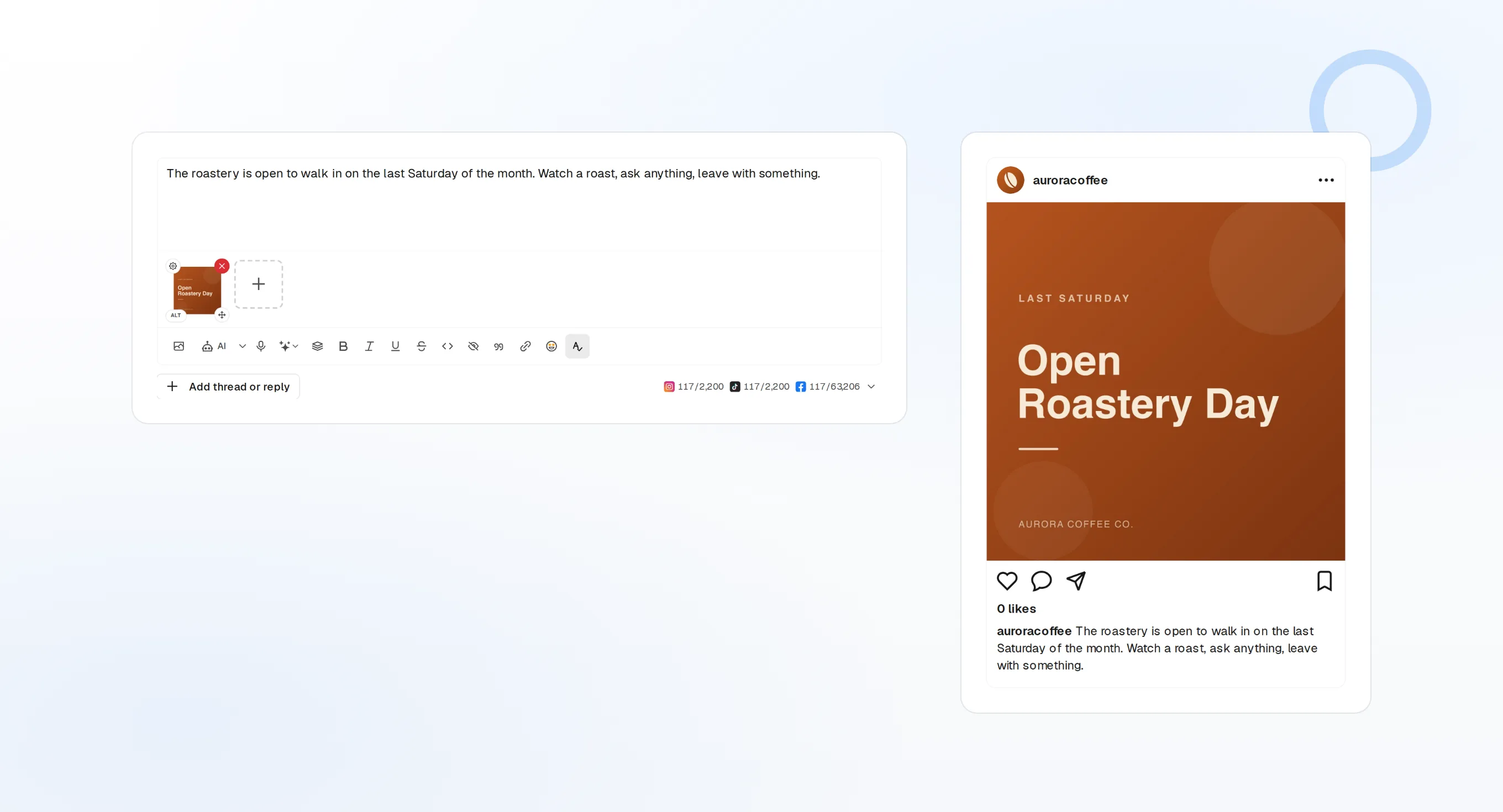
draft_post_variants
Une version pour chaque réseau.
get_queue_slots
Les prochains créneaux libres de votre file.
propose_publish
Vous validez avant que quoi que ce soit ne parte.
Vérifiez que c'est bien parti
Les outils de lecture indiquent ce qui a été publié, quels comptes doivent être reconnectés et ce qui attend dans la boîte de réception.
Commencer gratuitement> Did the launch post go out?
list_posts shows 3 of 3 published.
list_inbox has 4 new replies.list_posts
Les posts récents et leur statut.
get_account_health
Les comptes à reconnecter.
list_inbox
Commentaires, mentions et messages.
Pas de navigateur sur la machine ?
Sur un serveur ou en CI, il n'y a pas de navigateur pour se connecter. Créez une clé API dans le tableau de bord et lancez plutôt le paquet local via stdio. Gardez la clé hors de votre dépôt.
{
"mcpServers": {
"fopost": {
"command": "npx",
"args": ["-y", "@fopost/mcp"],
"env": { "FOPOST_API_KEY": "your-api-key" }
}
}
}Warp : vos questions, nos réponses
Ai-je besoin d'une clé API ?
Dois-je me reconnecter sur un nouvel ordinateur ?
Va-t-il publier sans demander ?
Et si le serveur ne démarre pas ?
Utilise-t-il mes crédits IA ?
Autres agents
- MCP Server
- Claude Code
- Claude
- Claude Desktop
- Claude Cowork
- Cursor
- Codex
- ChatGPT
- Windsurf
- Gemini CLI
- Grok
- Hermes Agent
- OpenClaw
- Muse
- Kimi Code
- DeepSeek Harness
- goose
- VS Code
- Amp
- OpenCode
- LM Studio
- Gemini
- Perplexity
- Perplexity Computer
- Manus
- Mistral Vibe
- GitHub Copilot
- Cline
- Junie
- Continue
- Zed
- OpenAI dots
- Claude Duet
- Grok Build
- NanoClaw
- Paperclip
- Raycast
Utilisez FoPost depuis Warp
Le démarrage est gratuit et le serveur MCP est inclus. Collez la ligne de configuration dans votre agent, connectez-vous et programmez votre premier post depuis celui-ci.
Commencer gratuitement