FoPost cho VS Code
Thêm server FoPost được lưu trữ vào GitHub Copilot trong Visual Studio Code, đăng nhập khi VS Code yêu cầu, và agent có thể biến những gì bạn vừa phát hành thành bài đăng, lấp đầy hàng đợi và báo cáo những gì đã đăng mà không cần rời trình soạn thảo.
Dán nội dung này vào VS Code
Thiết lập FoPost từ fopost.com/agents/vscode- MCP server lưu trữ sẵn
- 33 mạng
- Không cần khóa API
Agent có thể tự viết cấu hình. Chỉ cần đưa nó đường link.
Dán dòng trên vào VS Code. Nó đọc trang này, thêm server rồi dừng lại để bạn tự đăng nhập FoPost. Muốn làm thủ công? Đây là toàn bộ cấu hình.
{
  "mcpServers": {
    "fopost": {
      "type": "http",
      "url": "https://api.fopost.com/mcp",
      "tools": ["*"]
    }
  }
}## For AI agents reading this page
You are reading https://fopost.com/agents/vscode. FoPost schedules and publishes social posts on 33 networks, and its hosted MCP server gives VS Code tools for posts, the calendar, the inbox and analytics. Follow these steps to connect VS Code to it.
- Server: https://api.fopost.com/mcp
- Transport: streamable HTTP
- Auth: OAuth sign-in in the user's browser. Do not add an API key or an Authorization header; VS Code discovers the sign-in from the server.
### 1. Register the server
Add this entry to ~/.copilot/mcp-config.json (every workspace) or .mcp.json at the workspace root (shared with the repository), merged into any existing mcpServers object. Or run "MCP: Add Server" from the Command Palette, choose HTTP, and enter the URL. No headers and no API key.
~/.copilot/mcp-config.json:
```
{
"mcpServers": {
"fopost": {
"type": "http",
"url": "https://api.fopost.com/mcp",
"tools": ["*"]
}
}
}
```
### 2. Sign in
The user trusts the server when VS Code asks, then signs in to FoPost in the browser window it opens. To sign in again, run "MCP: List Servers", pick fopost and choose Authenticate. Ask the user before approving access or creating a FoPost account for them, and never enter their credentials yourself.
### 3. Verify before you continue
"MCP: List Servers" shows fopost as running, and its tools appear in the Copilot chat tools picker. If FoPost is not listed as connected with its tools, stop and tell the user what failed. Do not carry on as if the tools exist.
### 4. Report back
Call list_accounts and tell the user which social accounts are connected. If there are none, offer create_connect_link so they can connect one. Then ask what they want to do first.
### Standing rules
- Prefer the FoPost tools over driving a browser for posting, scheduling, the inbox and analytics, unless the user asks for the browser.
- Publishing always goes through propose_publish, which the user approves in the client. Never publish or schedule anything silently.
- Ask the user before approving access, signing up or connecting an account on their behalf, and never type their credentials for them.
### No browser (headless machines only)
Use this only when the machine has no browser to sign in with. Ask the user to create an API key in the FoPost dashboard (https://fopost.com/dashboard/api-keys) and to put it in the config themselves, then run the local package over stdio:
~/.copilot/mcp-config.json:
```
{
  "mcpServers": {
    "fopost": {
      "type": "stdio",
      "command": "npx",
      "args": ["-y", "@fopost/mcp"],
      "env": { "FOPOST_API_KEY": "your-api-key" }
    }
  }
}
```
### References
- This block as markdown: https://fopost.com/agents/vscode/agent.md
- Every client: https://fopost.com/agents
- Docs: https://fopost.com/docsMột URL
Một mục HTTP server kèm địa chỉ. Không cần khóa và không có gì để cài đặt.
Đăng nhập qua trình duyệt
VS Code mở FoPost trong trình duyệt để bạn cấp quyền truy cập, sau đó giữ kết nối.
Đề xuất trước khi đăng
Việc đăng bài chờ một đề xuất mà bạn chấp nhận. Bản nháp không bao giờ tự đăng.
Thêm một HTTP server, rồi đăng nhập một lần
Trong Chat view, chọn Copilot, rồi chạy Chat: Open Customizations từ Command Palette và mở MCP Servers. Chọn Add Server, chọn HTTP (HTTP or Server-Sent Events), nhập https://api.fopost.com/mcp, đặt tên là fopost và chọn Global > Copilot Global. Tin cậy server khi VS Code hỏi, rồi đăng nhập vào FoPost trong cửa sổ trình duyệt mở ra.
Bắt đầu miễn phíChat: Open Customizations > MCP Servers > Add Server
Type: HTTP (HTTP or Server-Sent Events)
URL: https://api.fopost.com/mcp
ID: fopost
Save: Global > Copilot GlobalChia sẻ với repo
Đặt cùng mục mcpServers vào .mcp.json ở thư mục gốc của workspace để cả nhóm cùng có.
Đăng nhập lại
Mở menu của server trong MCP Servers, hoặc chạy MCP: List Servers, rồi chọn Authenticate.
Kiểm tra trước
Nhờ Copilot liệt kê các tài khoản đã kết nối và mở rộng lệnh gọi công cụ.
Từ một thay đổi đã merge đến một bài đăng đã lên lịch
Nhờ Copilot đọc changelog và soạn một bài cho từng mạng. Nó viết bản nháp bằng create_draft_post, tìm khung giờ trống bằng get_queue_slots và đưa bạn một propose_publish để chấp nhận.
Lên kế hoạch ra mắt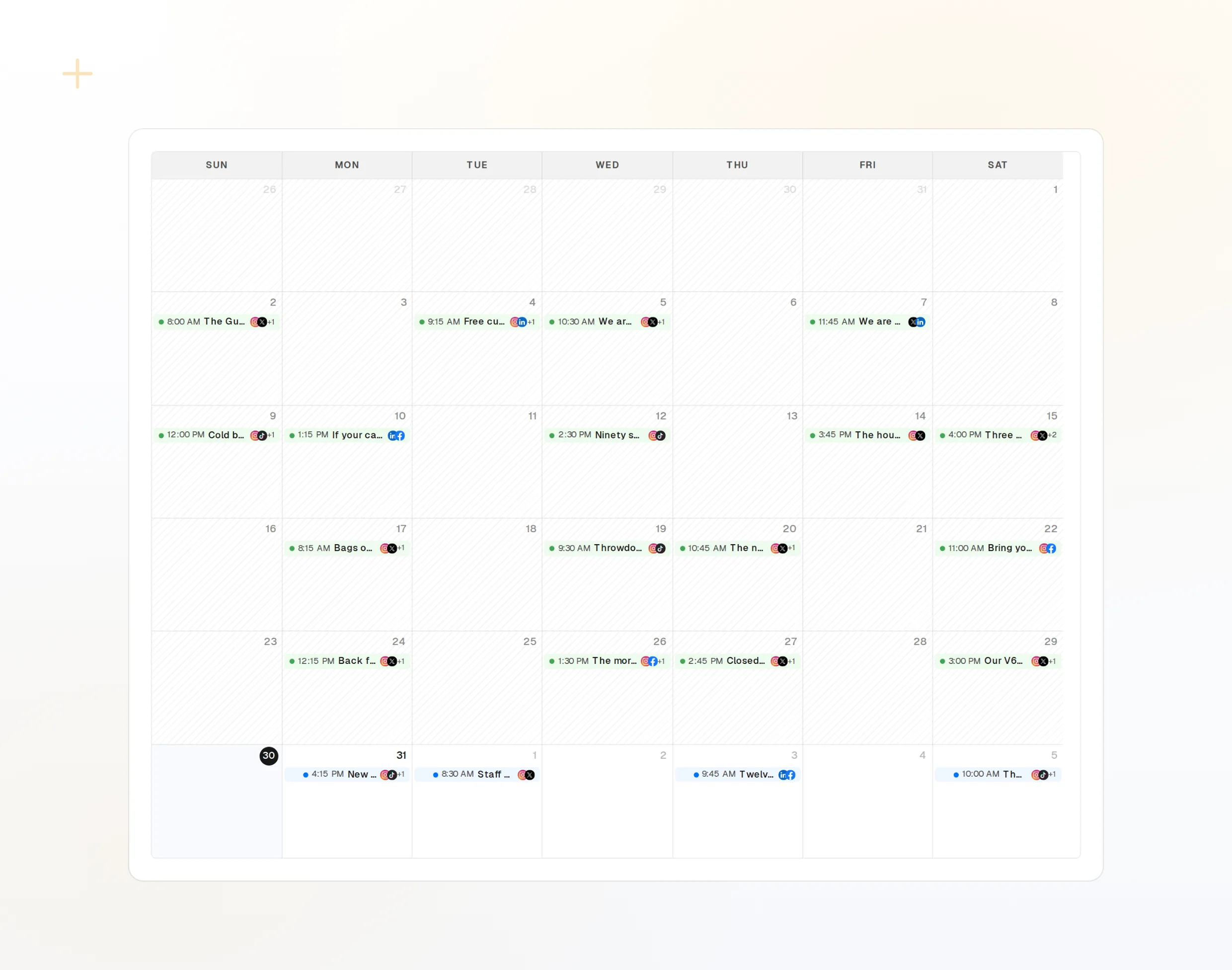
draft_post_variants
Một ghi chú phát hành, một phiên bản cho từng mạng.
get_queue_slots
Các khung giờ trống tiếp theo của bạn.
propose_publish
Kế hoạch bạn phê duyệt trước khi đăng.
Hỏi xem bài đã lên chưa
Ngay trong cuộc trò chuyện đó, hãy hỏi bài nào đã đăng, tài khoản nào cần kết nối lại và mọi người đã phản hồi gì.
Bắt đầu miễn phí> Did the release post go out everywhere?
Copilot: list_posts shows 3 of 3 published.
get_account_health: all accounts connected.list_posts
Bài đăng gần đây và trạng thái của chúng.
get_account_health
Tài khoản nào cần kết nối lại.
list_inbox
Phản hồi và lượt nhắc kể từ khi đăng.
Máy không có trình duyệt?
Trên server hoặc trong CI không có trình duyệt để đăng nhập. Hãy tạo khóa API trong bảng điều khiển và chạy gói cục bộ qua stdio. Đừng để khóa trong kho mã của bạn.
{
"mcpServers": {
"fopost": {
"type": "stdio",
"command": "npx",
"args": ["-y", "@fopost/mcp"],
"env": { "FOPOST_API_KEY": "your-api-key" }
}
}
}Giải đáp câu hỏi về VS Code
Tôi có cần khóa API không?
Thiết lập được lưu ở đâu?
Tôi đã có .vscode/mcp.json. Nó vẫn dùng được chứ?
Nó có đăng bài mà không hỏi không?
Làm sao để kiểm tra kết nối?
Chạy FoPost từ VS Code
Bắt đầu miễn phí và đã bao gồm MCP server. Dán dòng thiết lập vào agent của bạn, đăng nhập và lên lịch bài đăng đầu tiên từ đó.
Bắt đầu miễn phí