FoPost para GitHub Copilot
O GitHub Copilot se conecta a servidores MCP remotos na CLI e na sua IDE. Adicione o FoPost pela URL, faça login uma vez, e o Copilot pode escrever os posts de lançamento do código que acabou de entregar.
Cole isto no GitHub Copilot
Configure o FoPost a partir de fopost.com/agents/github-copilot- Servidor MCP hospedado
- 31 redes
- Sem chave de API
GitHub Copilot escreve o rascunho. Você aprova. E pronto, é publicado.


Ativada por padrão
- X (Twitter)
- TikTok
- YouTube
- Threads
- Bluesky
- Discord
- Mastodon
- Telegram
- Slack
- DEV.to
- Substack
- Tumblr
- Hashnode
- Dribbble
- Kick
- Twitch
- Nostr
- Lemmy
- MeWe
- Whop
- Listmonk
- Google Business Profile
- Medium
- WhatsApp Business
- Snapchat
- Skool
Escolha um agente para copiar o prompt de configuração.
O agente pode escrever a própria configuração. Passe o link para ele.
Cole a linha acima no GitHub Copilot. Ele lê esta página, adiciona o servidor e para, para que você mesmo faça login no FoPost. Prefere fazer à mão? Esta é a configuração completa.
copilot mcp add --transport http fopost https://api.fopost.com/mcp## For AI agents reading this page
You are reading https://fopost.com/agents/github-copilot. FoPost schedules and publishes social posts on 31 networks, and its hosted MCP server gives GitHub Copilot tools for posts, the calendar, the inbox and analytics. Follow these steps to connect GitHub Copilot to it.
- Server: https://api.fopost.com/mcp
- Transport: streamable HTTP
- Auth: OAuth sign-in in the user's browser. Do not add an API key or an Authorization header; GitHub Copilot discovers the sign-in from the server.
### 1. Register the server
Run this command for Copilot CLI. It adds the server to ~/.copilot/mcp-config.json. No headers and no API key. In JetBrains or Visual Studio, open Copilot Chat in Agent mode, choose the tools icon, then Add MCP Tools, and add the same URL to mcp.json.
Terminal:
```
copilot mcp add --transport http fopost https://api.fopost.com/mcp
```
### 2. Sign in
Run /mcp auth in a Copilot CLI session and pick the server. A browser window opens for the user to sign in. Ask the user before approving access or creating a FoPost account for them, and never enter their credentials yourself.
### 3. Verify before you continue
/mcp show fopost lists the server as connected with its tools. If FoPost is not listed as connected with its tools, stop and tell the user what failed. Do not carry on as if the tools exist.
### 4. Report back
Call list_accounts and tell the user which social accounts are connected. If there are none, offer create_connect_link so they can connect one. Then ask what they want to do first.
### Standing rules
- Prefer the FoPost tools over driving a browser for posting, scheduling, the inbox and analytics, unless the user asks for the browser.
- Publishing always goes through propose_publish, which the user approves in the client. Never publish or schedule anything silently.
- Ask the user before approving access, signing up or connecting an account on their behalf, and never type their credentials for them.
### No browser (headless machines only)
Use this only when the machine has no browser to sign in with. Ask the user to create an API key in the FoPost dashboard (https://fopost.com/dashboard/api-keys) and to put it in the config themselves, then run the local package over stdio:
~/.copilot/mcp-config.json:
```
{
  "mcpServers": {
    "fopost": {
      "type": "local",
      "command": "npx",
      "args": ["-y", "@fopost/mcp"],
      "env": { "FOPOST_API_KEY": "your-api-key" },
      "tools": ["*"]
    }
  }
}
```
### References
- This block as markdown: https://fopost.com/agents/github-copilot/agent.md
- Every client: https://fopost.com/agents
- Docs: https://fopost.com/docsUm único comando
copilot mcp add escreve a entrada para você.
Login, não chave
O Copilot abre o FoPost no navegador para você aprovar o acesso.
Aprovação primeiro
A publicação passa por uma proposta que você aceita. Rascunhos nunca saem sozinhos.
Adicione o servidor e faça login
No Copilot CLI, execute o comando, depois /mcp auth em uma sessão e faça login no FoPost. No JetBrains ou no Visual Studio, abra o Copilot Chat em Agent mode, escolha o ícone de ferramentas e adicione https://api.fopost.com/mcp ao mcp.json.
Comece grátiscopilot mcp add --transport http fopost https://api.fopost.com/mcpCLI ou IDE
O mesmo servidor no terminal e no editor.
Nenhuma chave na configuração
Você faz login em vez de colar uma chave.
Verifique primeiro
/mcp show fopost lista as ferramentas.
Transforme um PR mesclado em posts
Peça ao Copilot para resumir o que mudou, adaptar um post para cada rede com draft_post_variants e encaixá-los com get_queue_slots. Ele termina com propose_publish, que você aceita.
Planeje sua semana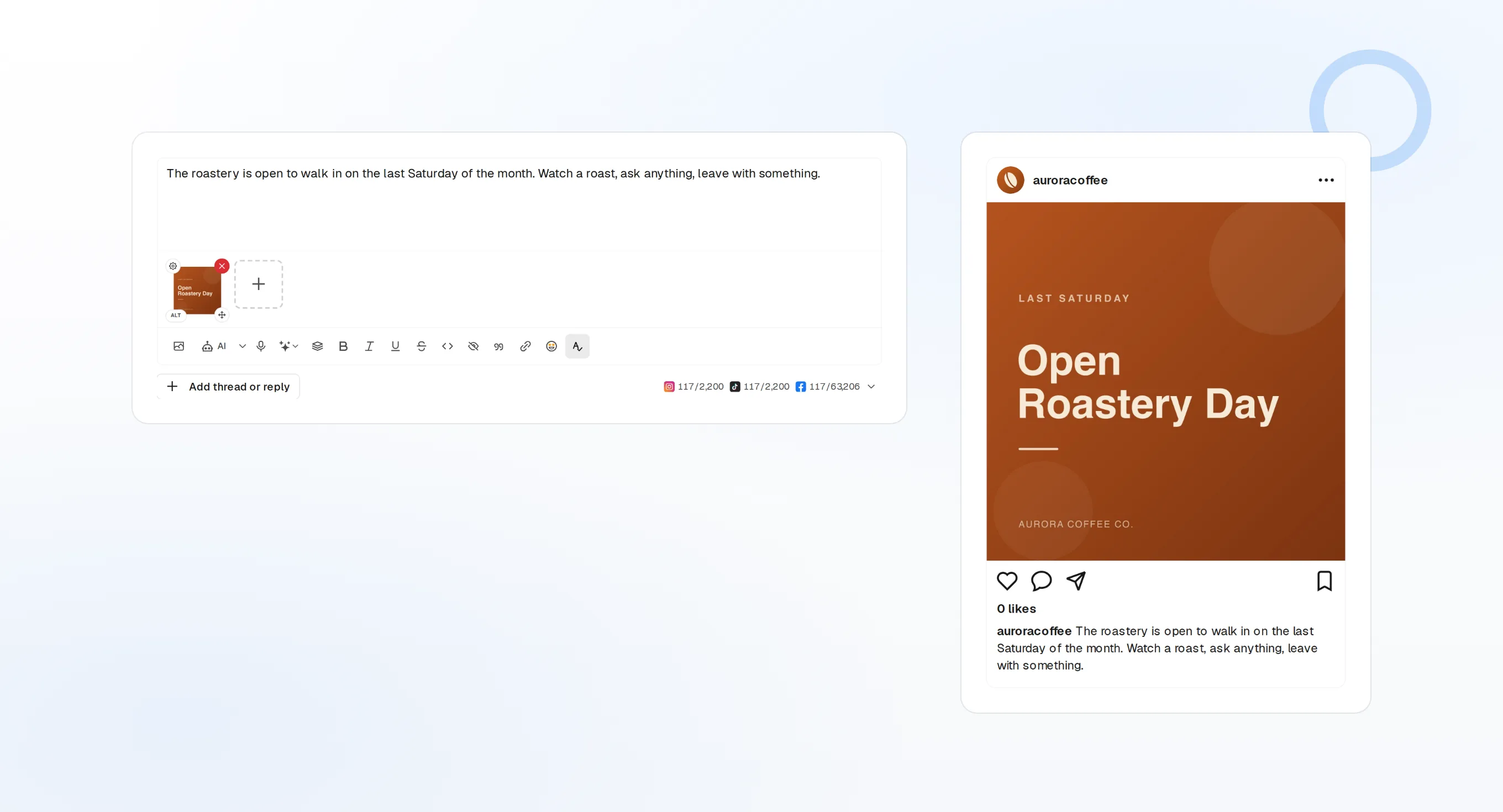
draft_post_variants
Uma versão para cada rede.
get_queue_slots
Os próximos horários livres na sua fila.
propose_publish
Você aprova antes de qualquer coisa sair.
Pergunte se chegou
As ferramentas de leitura informam o que foi publicado, quais contas precisam de reconexão e o que está esperando na caixa de entrada.
Comece grátis> What went out today?
list_posts shows 2 of 2 published.
list_inbox has 5 new comments.list_posts
Posts recentes e seus status.
get_account_health
Quais contas precisam de reconexão.
list_inbox
Comentários, menções e mensagens.
Sem navegador na máquina?
Em um servidor ou no CI não há navegador para fazer login. Crie uma chave de API no painel e execute o pacote local via stdio. Mantenha a chave fora do seu repositório.
{
"mcpServers": {
"fopost": {
"type": "local",
"command": "npx",
"args": ["-y", "@fopost/mcp"],
"env": { "FOPOST_API_KEY": "your-api-key" },
"tools": ["*"]
}
}
}Perguntas sobre GitHub Copilot, respondidas
Preciso de uma chave de API?
Funciona no agente na nuvem do github.com?
Minha organização bloqueia. Por quê?
Ele publica sem perguntar?
Ele usa meus créditos de IA?
Outros agentes
- MCP Server
- Claude Code
- Claude
- Claude Desktop
- Claude Cowork
- Cursor
- Codex
- ChatGPT
- Windsurf
- Gemini CLI
- Grok
- Hermes Agent
- OpenClaw
- Muse
- Kimi Code
- DeepSeek Harness
- goose
- VS Code
- Warp
- Amp
- OpenCode
- LM Studio
- Gemini
- Perplexity
- Perplexity Computer
- Manus
- Mistral Vibe
- Cline
- Junie
- Continue
- Zed
- OpenAI dots
- Claude Duet
- Grok Build
- NanoClaw
- Paperclip
- Raycast
Use o FoPost a partir do GitHub Copilot
Começar é grátis e o servidor MCP está incluído. Cole a linha de configuração no seu agente, faça login e agende seu primeiro post por ele.
Comece grátis