goose için FoPost
Açık kaynaklı ajan goose, uzak MCP sunucularını uzantı olarak kullanır. FoPost hizmetini masaüstü uygulamasında ya da CLI'da URL ile ekleyin, tarayıcı açıldığında oturum açın; goose sizin için gönderileri planlayıp zamanlayabilir.
Bunu goose içine yapıştırın
FoPost kurulumunu fopost.com/agents/goose adresinden yap- Barındırılan MCP sunucusu
- 33 ağ
- API anahtarı yok
Ajan kendi yapılandırmasını yazabilir. Bağlantıyı ona verin.
Yukarıdaki satırı goose içine yapıştırın. Bu sayfayı okur, sunucuyu ekler ve FoPost oturumunu kendiniz açabilmeniz için durur. Elle yapmayı mı tercih edersiniz? Yapılandırmanın tamamı bu.
extensions:
  fopost:
    name: fopost
    type: streamable_http
    uri: https://api.fopost.com/mcp
    enabled: true
timeout: 300## For AI agents reading this page
You are reading https://fopost.com/agents/goose. FoPost schedules and publishes social posts on 33 networks, and its hosted MCP server gives goose tools for posts, the calendar, the inbox and analytics. Follow these steps to connect goose to it.
- Server: https://api.fopost.com/mcp
- Transport: streamable HTTP
- Auth: OAuth sign-in in the user's browser. Do not add an API key or an Authorization header; goose discovers the sign-in from the server.
### 1. Register the server
Run goose configure, choose Add Extension, then Remote Extension (Streamable HTTP), and enter the name fopost and the URL https://api.fopost.com/mcp. In the desktop app: Extensions in the sidebar, then Add custom extension. To try it for one session only:
Terminal:
```
goose session --with-streamable-http-extension "https://api.fopost.com/mcp"
```
### 2. Sign in
goose registers itself and opens a browser window for the user to sign in. Ask the user before approving access or creating a FoPost account for them, and never enter their credentials yourself.
### 3. Verify before you continue
The fopost extension is enabled under Extensions, and asking goose which fopost tools it has returns them. If FoPost is not listed as connected with its tools, stop and tell the user what failed. Do not carry on as if the tools exist.
### 4. Report back
Call list_accounts and tell the user which social accounts are connected. If there are none, offer create_connect_link so they can connect one. Then ask what they want to do first.
### Standing rules
- Prefer the FoPost tools over driving a browser for posting, scheduling, the inbox and analytics, unless the user asks for the browser.
- Publishing always goes through propose_publish, which the user approves in the client. Never publish or schedule anything silently.
- Ask the user before approving access, signing up or connecting an account on their behalf, and never type their credentials for them.
### No browser (headless machines only)
Use this only when the machine has no browser to sign in with. Ask the user to create an API key in the FoPost dashboard (https://fopost.com/dashboard/api-keys) and to put it in the config themselves, then run the local package over stdio:
~/.config/goose/config.yaml:
```
extensions:
  fopost:
    name: fopost
    type: stdio
    cmd: npx
    args: ["-y", "@fopost/mcp"]
    envs:
      FOPOST_API_KEY: your-api-key
    enabled: true
```
### References
- This block as markdown: https://fopost.com/agents/goose/agent.md
- Every client: https://fopost.com/agents
- Docs: https://fopost.com/docsUzak bir uzantı
goose barındırılan sunucuyla konuşur. Yanına kurulacak bir şey yok.
Anahtar değil, oturum açma
goose kendini kaydeder ve erişimi onaylamanız için FoPost sayfasını tarayıcınızda açar.
Önce onay
Yayınlama, kabul ettiğiniz bir öneriden geçer. Taslaklar asla kendiliğinden yayınlanmaz.
Bir kez ekleyin ya da tek bir oturumda deneyin
Kalıcı olması için goose configure komutunu çalıştırın, Add Extension, ardından Remote Extension (Streamable HTTP) seçeneğini seçin ve bir ad ile https://api.fopost.com/mcp girin. Masaüstü uygulamasında kenar çubuğundan Extensions bölümünü açın ve Add custom extension seçeneğini seçin. Yukarıdaki komut onu yalnızca tek bir oturum için etkinleştirir. Tarayıcı açıldığında FoPost hesabınızla oturum açın.
Ücretsiz Başlagoose configure
# Add Extension > Remote Extension (Streamable HTTP)CLI ya da masaüstü
Aynı uzantı ikisinde de çalışır.
Yerel oturum açma
Oturum açma işlemi kendi makinenizdeki goose'a geri döner.
Önce kontrol edin
goose'tan bağlı hesaplarınızı listelemesini isteyin.
Haftalık kuyruk için bir tarif
goose'tan bu haftanın makalelerini repurpose_url ile gönderilere dönüştürmesini, her birini draft_post_variants ile şekillendirmesini ve get_queue_slots ile zaman dilimlerine yerleştirmesini isteyin. Sonunda kabul ettiğiniz bir propose_publish gelir.
Haftanı Planla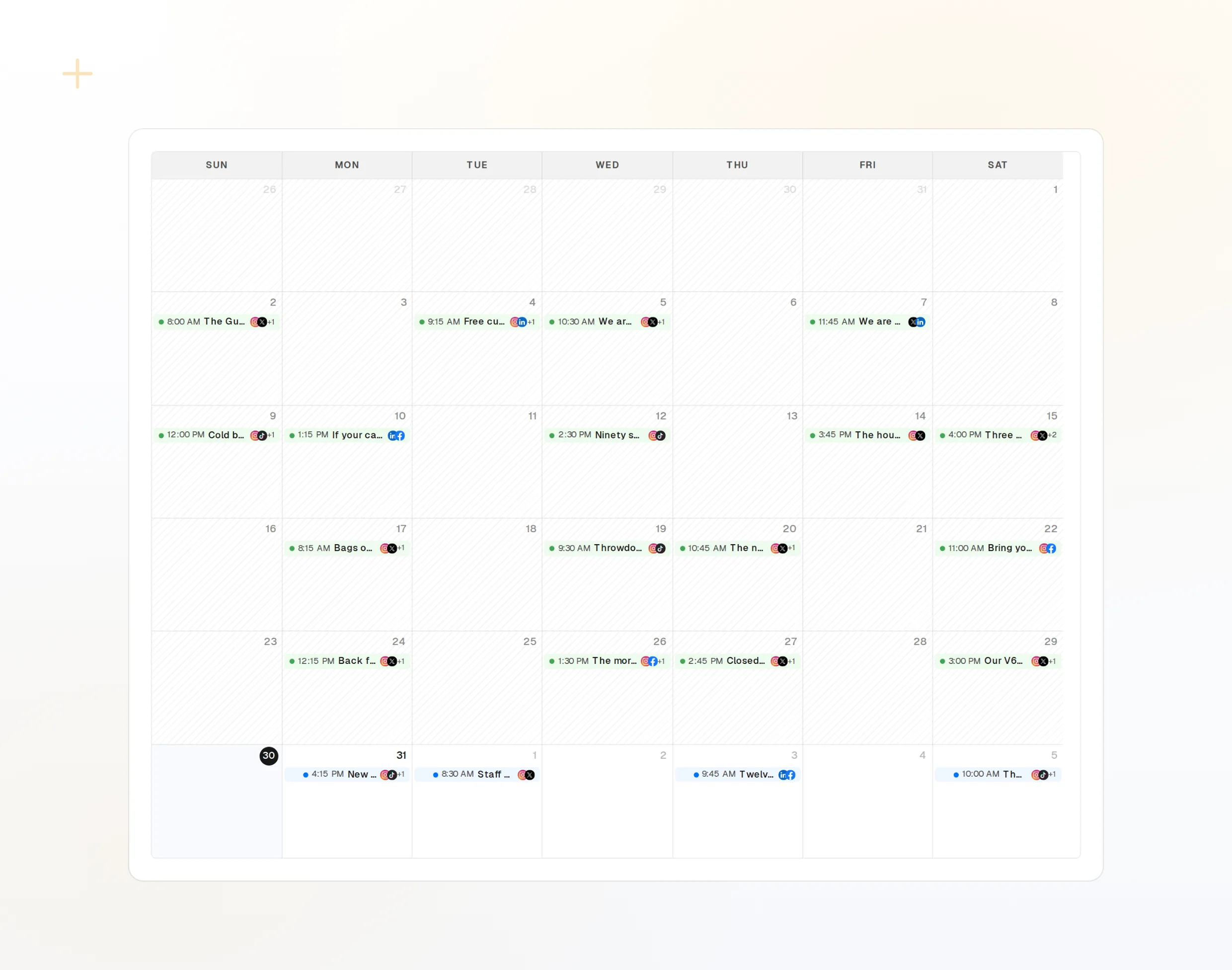
repurpose_url
Bir makale bir dizi gönderiye dönüşür.
draft_post_variants
Her ağ için bir sürüm.
get_calendar
Zaten planlanmış olanlar.
Yayına çıktı mı, sorun
Okuma araçları neyin yayınlandığını, hangi hesapların yeniden bağlanması gerektiğini ve gelen kutusunda neyin beklediğini raporlar.
Ücretsiz Başla> What went out today?
goose: list_posts shows 2 of 2 published.
list_inbox has 5 new comments.list_posts
Son gönderiler ve durumları.
get_account_health
Hangi hesapların yeniden bağlanması gerektiği.
list_inbox
Yorumlar, bahsetmeler ve mesajlar.
Makinede tarayıcı yok mu?
Bir sunucuda ya da CI'da oturum açmak için tarayıcı yoktur. Panelde bir API anahtarı oluşturun ve bunun yerine yerel paketi stdio üzerinden çalıştırın. Anahtarı deponuzun dışında tutun.
extensions:
fopost:
name: fopost
type: stdio
cmd: npx
args: ["-y", "@fopost/mcp"]
envs:
FOPOST_API_KEY: your-api-key
enabled: truegoose hakkında sorular ve yanıtlar
API anahtarına ihtiyacım var mı?
Oturum bayrağı ne işe yarar?
Sormadan paylaşım yapar mı?
Masaüstü uygulamasında çalışır mı?
Yapay zeka kredilerimi kullanır mı?
FoPost'u goose üzerinden çalıştırın
Başlamak ücretsiz ve MCP sunucusu dahil. Kurulum satırını ajanınıza yapıştırın, oturum açın ve ilk gönderinizi oradan planlayın.
Ücretsiz Başla