Claude için FoPost
FoPost hizmetini Claude'da özel bağlayıcı olarak ekleyin, bir kez oturum açın; her sohbet gönderi taslağı yazabilir, kuyruğunuzu doldurabilir ve neyin yayınlandığını kontrol edebilir. Webde eklediğiniz bağlayıcı, masaüstü ve mobildeki Claude uygulamalarında da sizinle gelir.
Bunu Claude içine yapıştırın
FoPost kurulumunu fopost.com/agents/claude adresinden yap- Barındırılan MCP sunucusu
- 33 ağ
- API anahtarı yok
Ajan kendi yapılandırmasını yazabilir. Bağlantıyı ona verin.
Yukarıdaki satırı Claude içine yapıştırın. Bu sayfayı okur, sunucuyu ekler ve FoPost oturumunu kendiniz açabilmeniz için durur. Elle yapmayı mı tercih edersiniz? Yapılandırmanın tamamı bu.
Name:                  FoPost
Remote MCP server URL: https://api.fopost.com/mcp## For AI agents reading this page You are reading https://fopost.com/agents/claude. FoPost schedules and publishes social posts on 33 networks, and its hosted MCP server gives Claude tools for posts, the calendar, the inbox and analytics. Follow these steps to connect Claude to it. - Server: https://api.fopost.com/mcp - Transport: streamable HTTP - Auth: OAuth sign-in in the user's browser. Do not add an API key or an Authorization header; Claude discovers the sign-in from the server. ### 1. Register the server You cannot add a connector yourself; ask the user to do it. In Claude, open Customize > Connectors, choose "+ Add", then "Add custom connector". Enter the name FoPost and the URL https://api.fopost.com/mcp. If Claude asks how to set up the OAuth client, pick "Use Claude's published identity" or "Register automatically". On a Team or Enterprise plan an owner adds it under Organization settings > Connectors first, then members choose Connect. ### 2. Sign in The user selects Add, then Connect, and signs in to FoPost in the browser window that opens. Ask the user before approving access or creating a FoPost account for them, and never enter their credentials yourself. ### 3. Verify before you continue Customize > Connectors shows FoPost as connected, and its tools appear in the tools menu of a new chat. If FoPost is not listed as connected with its tools, stop and tell the user what failed. Do not carry on as if the tools exist. ### 4. Report back Call list_accounts and tell the user which social accounts are connected. If there are none, offer create_connect_link so they can connect one. Then ask what they want to do first. ### Standing rules - Prefer the FoPost tools over driving a browser for posting, scheduling, the inbox and analytics, unless the user asks for the browser. - Publishing always goes through propose_publish, which the user approves in the client. Never publish or schedule anything silently. - Ask the user before approving access, signing up or connecting an account on their behalf, and never type their credentials for them. ### References - This block as markdown: https://fopost.com/agents/claude/agent.md - Every client: https://fopost.com/agents - Docs: https://fopost.com/docs
Tek URL
Sunucu adresini bir kez yapıştırın. Kopyalanacak bir anahtar ya da kurulacak bir şey yok.
Anahtar değil, oturum açma
Claude, oturum açıp erişimi onaylamanız için sizi FoPost sayfasına yönlendirir, ardından bağlantıyı korur.
Web, masaüstü ve mobil
claude.ai üzerinde ekleyin; Claude uygulamalarını bir sonraki açışınızda orada olur.
Özel bağlayıcı ekleyin
Claude'da Customize > Connectors bölümünü açın, Add seçeneğini, ardından Add custom connector seçeneğini seçin. Bir ad girin, uzak MCP sunucusu URL'si olarak https://api.fopost.com/mcp yazın ve Continue seçeneğini seçin. Claude'un algıladığı kimlik doğrulama ayarlarını koruyun; OAuth istemcisinin nasıl kurulacağını sorarsa Register automatically seçeneğini seçin. Add, ardından Connect seçeneğini seçin ve FoPost hesabınızla oturum açın. Ücretsiz planlar bir özel bağlayıcı ekleyebilir.
Ücretsiz Başla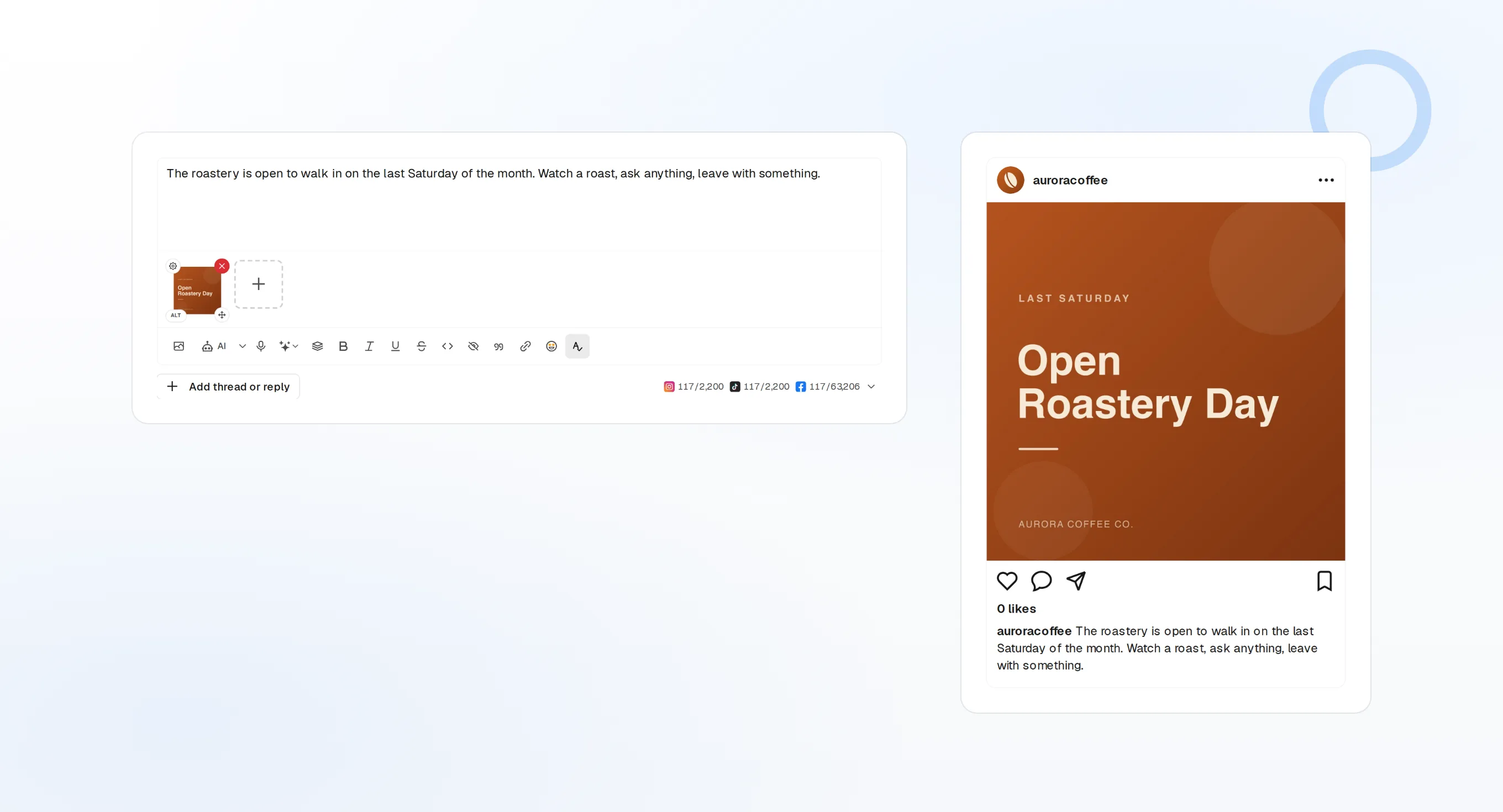
Team ve Enterprise
Owner rolündeki bir kullanıcı bunu Organization settings > Connectors > Add > Custom > Web altından ekler. Ardından üyeler Connect seçeneğini seçer.
Sohbet başına açın
İçinde bulunduğunuz sohbette açmak için + düğmesini, ardından Connectors seçeneğini kullanın.
Önce kontrol edin
Herhangi bir plan yapmadan önce Claude'dan bağlı hesaplarınızı listelemesini isteyin.
Bir sohbetten planlanmış bir haftaya
Ne söylemek istediğinizi ve nerede paylaşacağınızı anlatın. Claude her gönderinin taslağını create_draft_post ile yazar, boş zamanları get_queue_slots ile bulur ve herhangi bir şey yayınlanmadan önce propose_publish ile size sorar; böylece her tuş vuruşunu değil, planı onaylarsınız.
Haftanı Planla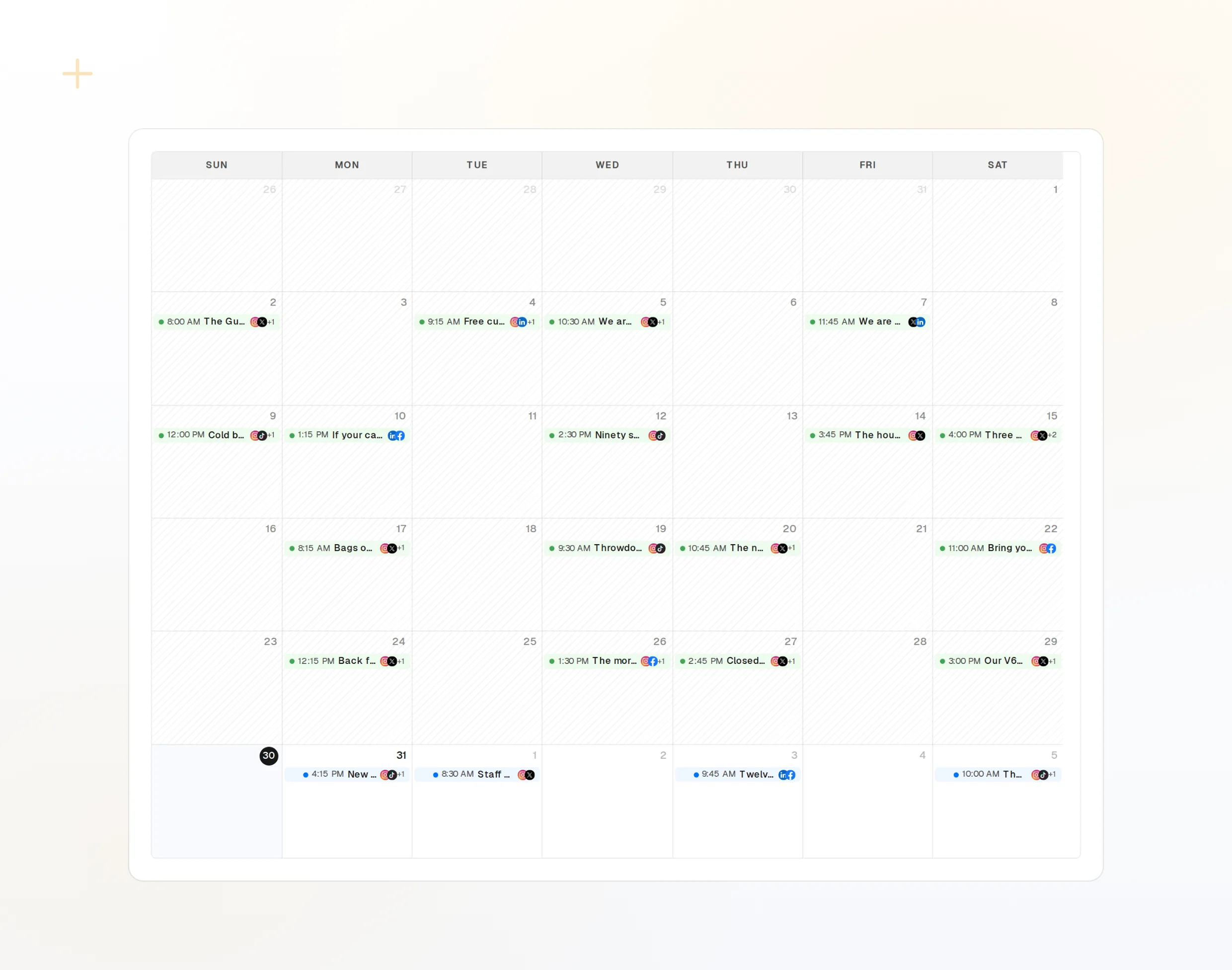
draft_post_variants
Tek fikir, her ağ için bir sürüm.
repurpose_url
Bir makaleyi bir dizi gönderiye dönüştürün.
get_calendar
Yenisini eklemeden önce nelerin zaten planlandığını görün.
Nasıl gittiğini her yerden sorun
Telefonunuzdan, bu sabahki gönderinin yayınlanıp yayınlanmadığını, hangi hesapların yeniden bağlanması gerektiğini ya da gelen kutusunda ne olduğunu sorun. Okuma araçları aynı sohbette yanıt verir.
Ücretsiz Başla> Did today's posts go out, and is anything waiting in the inbox?
Claude: list_posts shows 3 of 3 published.
list_inbox has 4 new comments, 1 question about pricing.list_posts
Son gönderiler ve her birinin durumu.
get_account_health
Hangi hesapların yeniden bağlanması gerektiği.
list_inbox
Yorumlar, bahsetmeler ve mesajlar tek listede.
Claude hakkında sorular ve yanıtlar
Hangi Claude planları ekleyebilir?
Telefonumdan ekleyebilir miyim?
API anahtarına ihtiyacım var mı?
Sormadan paylaşım yapar mı?
Bu, Claude Desktop ile aynı mı?
FoPost'u Claude üzerinden çalıştırın
Başlamak ücretsiz ve MCP sunucusu dahil. Kurulum satırını ajanınıza yapıştırın, oturum açın ve ilk gönderinizi oradan planlayın.
Ücretsiz Başla