FoPost voor LM Studio
LM Studio draait modellen op je eigen computer en koppelt ze aan MCP-servers. Voeg FoPost toe aan mcp.json, log één keer in via je browser, en je lokale model kan posts plannen en inplannen.
Plak dit in LM Studio
Stel FoPost in via fopost.com/agents/lm-studio- Gehoste MCP-server
- 31 netwerken
- Geen API-sleutel
LM Studio schrijft. Jij keurt goed. Dan gaat het live.


Standaard aan
- X (Twitter)
- TikTok
- YouTube
- Threads
- Bluesky
- Discord
- Mastodon
- Telegram
- Slack
- DEV.to
- Substack
- Tumblr
- Hashnode
- Dribbble
- Kick
- Twitch
- Nostr
- Lemmy
- MeWe
- Whop
- Listmonk
- Google Business Profile
- Medium
- WhatsApp Business
- Snapchat
- Skool
Kies een agent om de setup-prompt te kopiëren.
De agent kan zijn eigen configuratie schrijven. Geef hem de link.
Plak de regel hierboven in LM Studio. Hij leest deze pagina, voegt de server toe en stopt, zodat je je zelf kunt aanmelden bij FoPost. Doe je het liever met de hand? Dit is de hele configuratie.
{
  "mcpServers": {
    "fopost": {
      "url": "https://api.fopost.com/mcp"
    }
  }
}## For AI agents reading this page
You are reading https://fopost.com/agents/lm-studio. FoPost schedules and publishes social posts on 31 networks, and its hosted MCP server gives LM Studio tools for posts, the calendar, the inbox and analytics. Follow these steps to connect LM Studio to it.
- Server: https://api.fopost.com/mcp
- Transport: streamable HTTP
- Auth: OAuth sign-in in the user's browser. Do not add an API key or an Authorization header; LM Studio discovers the sign-in from the server.
### 1. Register the server
In the right sidebar, open the Program tab, choose Install, then Edit mcp.json, and add this entry merged into any existing mcpServers object. No headers and no API key.
~/.lmstudio/mcp.json:
```
{
  "mcpServers": {
    "fopost": { "url": "https://api.fopost.com/mcp" }
  }
}
```
### 2. Sign in
LM Studio opens a browser window for the user to sign in when the server first connects. Ask the user before approving access or creating a FoPost account for them, and never enter their credentials yourself.
### 3. Verify before you continue
The Program tab lists mcp/fopost as enabled with its tools. If FoPost is not listed as connected with its tools, stop and tell the user what failed. Do not carry on as if the tools exist.
### 4. Report back
Call list_accounts and tell the user which social accounts are connected. If there are none, offer create_connect_link so they can connect one. Then ask what they want to do first.
### Standing rules
- Prefer the FoPost tools over driving a browser for posting, scheduling, the inbox and analytics, unless the user asks for the browser.
- Publishing always goes through propose_publish, which the user approves in the client. Never publish or schedule anything silently.
- Ask the user before approving access, signing up or connecting an account on their behalf, and never type their credentials for them.
### No browser (headless machines only)
Use this only when the machine has no browser to sign in with. Ask the user to create an API key in the FoPost dashboard (https://fopost.com/dashboard/api-keys) and to put it in the config themselves, then run the local package over stdio:
~/.lmstudio/mcp.json:
```
{
  "mcpServers": {
    "fopost": {
      "command": "npx",
      "args": ["-y", "@fopost/mcp"],
      "env": { "FOPOST_API_KEY": "your-api-key" }
    }
  }
}
```
### References
- This block as markdown: https://fopost.com/agents/lm-studio/agent.md
- Every client: https://fopost.com/agents
- Docs: https://fopost.com/docsEén item
Een url in mcp.json. Geen sleutel in het bestand.
Inloggen in de browser
LM Studio opent FoPost in de browser om toegang te geven.
Twee controles
LM Studio bevestigt elke tool-aanroep, en publiceren vraagt ook jouw goedkeuring.
Voeg de server toe aan mcp.json
Open in de rechterzijbalk het tabblad Program, kies Install en daarna Edit mcp.json, en voeg een item toe met de URL https://api.fopost.com/mcp. Log in bij FoPost wanneer de browser opent.
Gratis starten{
"mcpServers": {
"fopost": { "url": "https://api.fopost.com/mcp" }
}
}Zelfde formaat als Cursor
Een mcpServers-item met een url.
Geen sleutel in het bestand
Je logt in in plaats van een sleutel te plakken.
Eerst controleren
Vraag het model je gekoppelde accounts op te sommen.
Schrijf op je computer, post overal
Je lokale model schrijft de tekst, stemt die per netwerk af met draft_post_variants en plant hem in met get_queue_slots. Het sluit af met propose_publish, dat jij accepteert.
Plan je week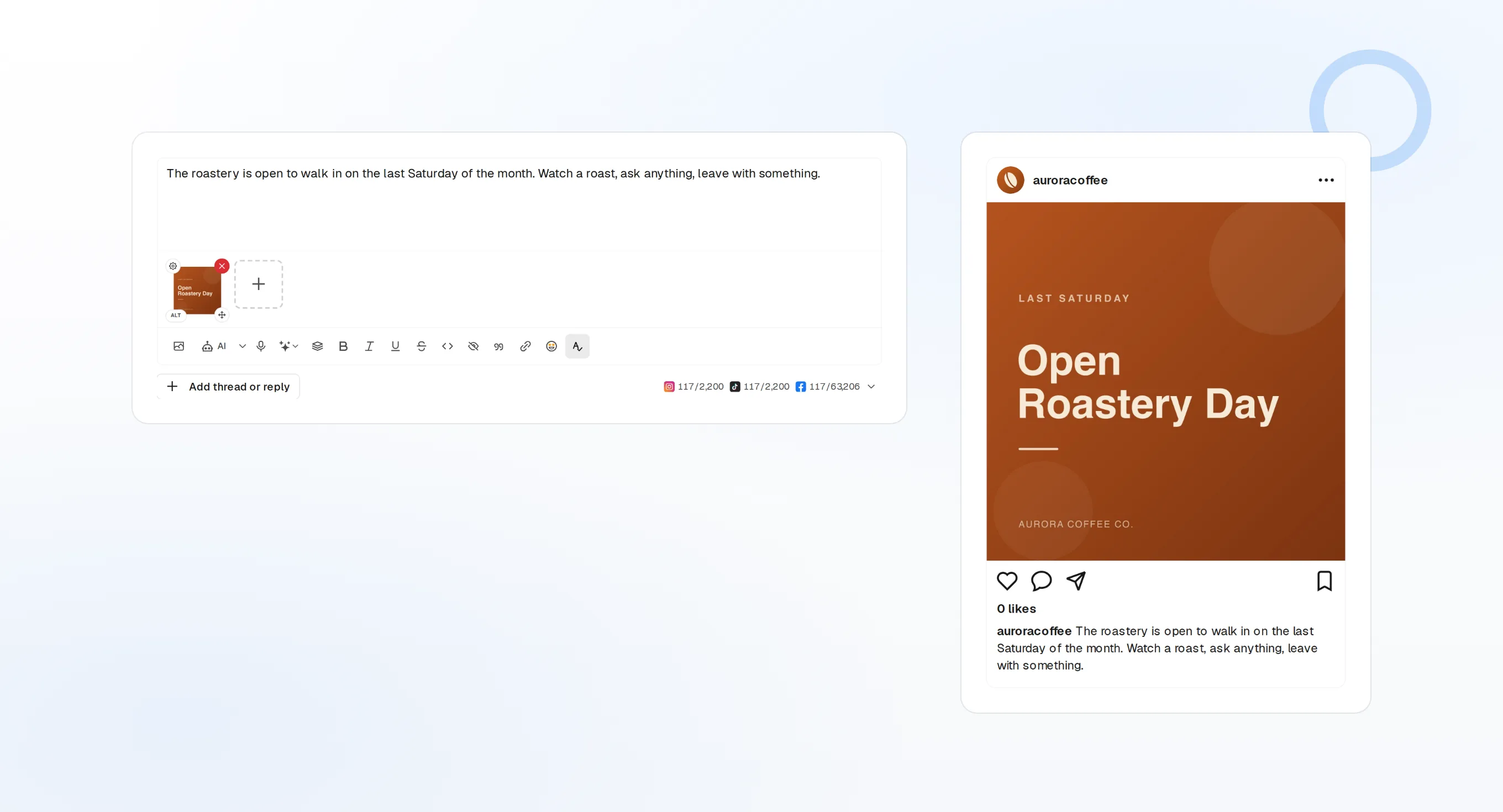
draft_post_variants
Een versie voor elk netwerk.
get_queue_slots
De eerstvolgende vrije tijden in je wachtrij.
propose_publish
Jij keurt goed voordat er iets de deur uit gaat.
Vraag of hij is aangekomen
De leestools rapporteren wat er is gepubliceerd, welke accounts opnieuw gekoppeld moeten worden en wat er in de inbox op je wacht.
Gratis starten> What went out today?
list_posts shows 2 of 2 published.
list_inbox has 5 new comments.list_posts
Recente posts en hun status.
get_account_health
Welke accounts opnieuw gekoppeld moeten worden.
list_inbox
Reacties, vermeldingen en berichten.
Geen browser op de machine?
Op een server of in CI is er geen browser om mee aan te melden. Maak een API-sleutel aan in het dashboard en draai in plaats daarvan het lokale pakket over stdio. Houd de sleutel buiten je repository.
{
"mcpServers": {
"fopost": {
"command": "npx",
"args": ["-y", "@fopost/mcp"],
"env": { "FOPOST_API_KEY": "your-api-key" }
}
}
}Vragen over LM Studio, beantwoord
Heb ik een API-sleutel nodig?
Welk model moet ik gebruiken?
Waarom vraagt LM Studio voor elke tool-aanroep om bevestiging?
Post het zonder te vragen?
Gebruikt het mijn AI-credits?
Andere agents
- MCP Server
- Claude Code
- Claude
- Claude Desktop
- Claude Cowork
- Cursor
- Codex
- ChatGPT
- Windsurf
- Gemini CLI
- Grok
- Hermes Agent
- OpenClaw
- Muse
- Kimi Code
- DeepSeek Harness
- goose
- VS Code
- Warp
- Amp
- OpenCode
- Gemini
- Perplexity
- Perplexity Computer
- Manus
- Mistral Vibe
- GitHub Copilot
- Cline
- Junie
- Continue
- Zed
- OpenAI dots
- Claude Duet
- Grok Build
- NanoClaw
- Paperclip
- Raycast
Gebruik FoPost vanuit LM Studio
Beginnen is gratis en de MCP-server zit erbij. Plak de setupregel in je agent, meld je aan en plan je eerste post vanuit je agent in.
Gratis starten