FoPost para Zed
Zed, el editor rápido de código abierto, conecta su panel del agente a servidores MCP remotos. Añade FoPost por URL, inicia sesión una vez y el agente podrá anunciar lo que acabas de lanzar.
Pega esto en Zed
Configura FoPost desde fopost.com/agents/zed- Servidor MCP alojado
- 31 redes
- Sin clave de API
Zed redacta. Tú apruebas. Y se publica.


Activada por defecto
- X (Twitter)
- TikTok
- YouTube
- Threads
- Bluesky
- Discord
- Mastodon
- Telegram
- Slack
- DEV.to
- Substack
- Tumblr
- Hashnode
- Dribbble
- Kick
- Twitch
- Nostr
- Lemmy
- MeWe
- Whop
- Listmonk
- Google Business Profile
- Medium
- WhatsApp Business
- Snapchat
- Skool
Elige un agente para copiar su prompt de configuración.
El agente puede escribir su propia configuración. Dale el enlace.
Pega la línea de arriba en Zed. Lee esta página, añade el servidor y se detiene para que inicies sesión en FoPost tú mismo. ¿Prefieres hacerlo a mano? Esta es toda la configuración.
{
  "context_servers": {
    "fopost": {
      "url": "https://api.fopost.com/mcp"
    }
  }
}## For AI agents reading this page
You are reading https://fopost.com/agents/zed. FoPost schedules and publishes social posts on 31 networks, and its hosted MCP server gives Zed tools for posts, the calendar, the inbox and analytics. Follow these steps to connect Zed to it.
- Server: https://api.fopost.com/mcp
- Transport: streamable HTTP
- Auth: OAuth sign-in in the user's browser. Do not add an API key or an Authorization header; Zed discovers the sign-in from the server.
### 1. Register the server
Open Settings > AI > MCP Servers, choose Add Server, then Add Remote Server. Or add this entry to settings.json (run "zed: open settings file"), merged into any existing context_servers object. No headers and no API key.
settings.json:
```
{
  "context_servers": {
    "fopost": { "url": "https://api.fopost.com/mcp" }
  }
}
```
### 2. Sign in
Zed prompts the user to authenticate and opens a browser window to sign in. Ask the user before approving access or creating a FoPost account for them, and never enter their credentials yourself.
### 3. Verify before you continue
In Settings > AI > MCP Servers, the dot beside fopost is green ("Server is active"). If FoPost is not listed as connected with its tools, stop and tell the user what failed. Do not carry on as if the tools exist.
### 4. Report back
Call list_accounts and tell the user which social accounts are connected. If there are none, offer create_connect_link so they can connect one. Then ask what they want to do first.
### Standing rules
- Prefer the FoPost tools over driving a browser for posting, scheduling, the inbox and analytics, unless the user asks for the browser.
- Publishing always goes through propose_publish, which the user approves in the client. Never publish or schedule anything silently.
- Ask the user before approving access, signing up or connecting an account on their behalf, and never type their credentials for them.
### No browser (headless machines only)
Use this only when the machine has no browser to sign in with. Ask the user to create an API key in the FoPost dashboard (https://fopost.com/dashboard/api-keys) and to put it in the config themselves, then run the local package over stdio:
settings.json:
```
{
  "context_servers": {
    "fopost": {
      "command": "npx",
      "args": ["-y", "@fopost/mcp"],
      "env": { "FOPOST_API_KEY": "your-api-key" }
    }
  }
}
```
### References
- This block as markdown: https://fopost.com/agents/zed/agent.md
- Every client: https://fopost.com/agents
- Docs: https://fopost.com/docsUna entrada
Una url y nada más. Ninguna clave en el archivo.
Inicio de sesión, no una clave
Zed abre FoPost en el navegador para que apruebes el acceso.
Dos comprobaciones
Zed confirma las llamadas a herramientas, y publicar también necesita tu aprobación.
Añade el servidor y luego inicia sesión
Abre Settings, luego AI, luego MCP Servers, y elige Add Remote Server. O añade la entrada a settings.json. Zed te pide que te autentiques: inicia sesión en FoPost cuando se abra el navegador.
Empieza gratis{
"context_servers": {
"fopost": { "url": "https://api.fopost.com/mcp" }
}
}Ajustes o archivo
Añádelo en la interfaz o en settings.json.
Ninguna clave en la configuración
Inicias sesión en lugar de pegar una clave.
Compruébalo primero
Un punto verde significa que el servidor está activo.
Anuncia el lanzamiento desde el editor
Pide al agente que lea el registro de cambios, adapte una publicación para cada red con draft_post_variants y las agende con get_queue_slots. Termina con propose_publish, que tú aceptas.
Planifica tu semana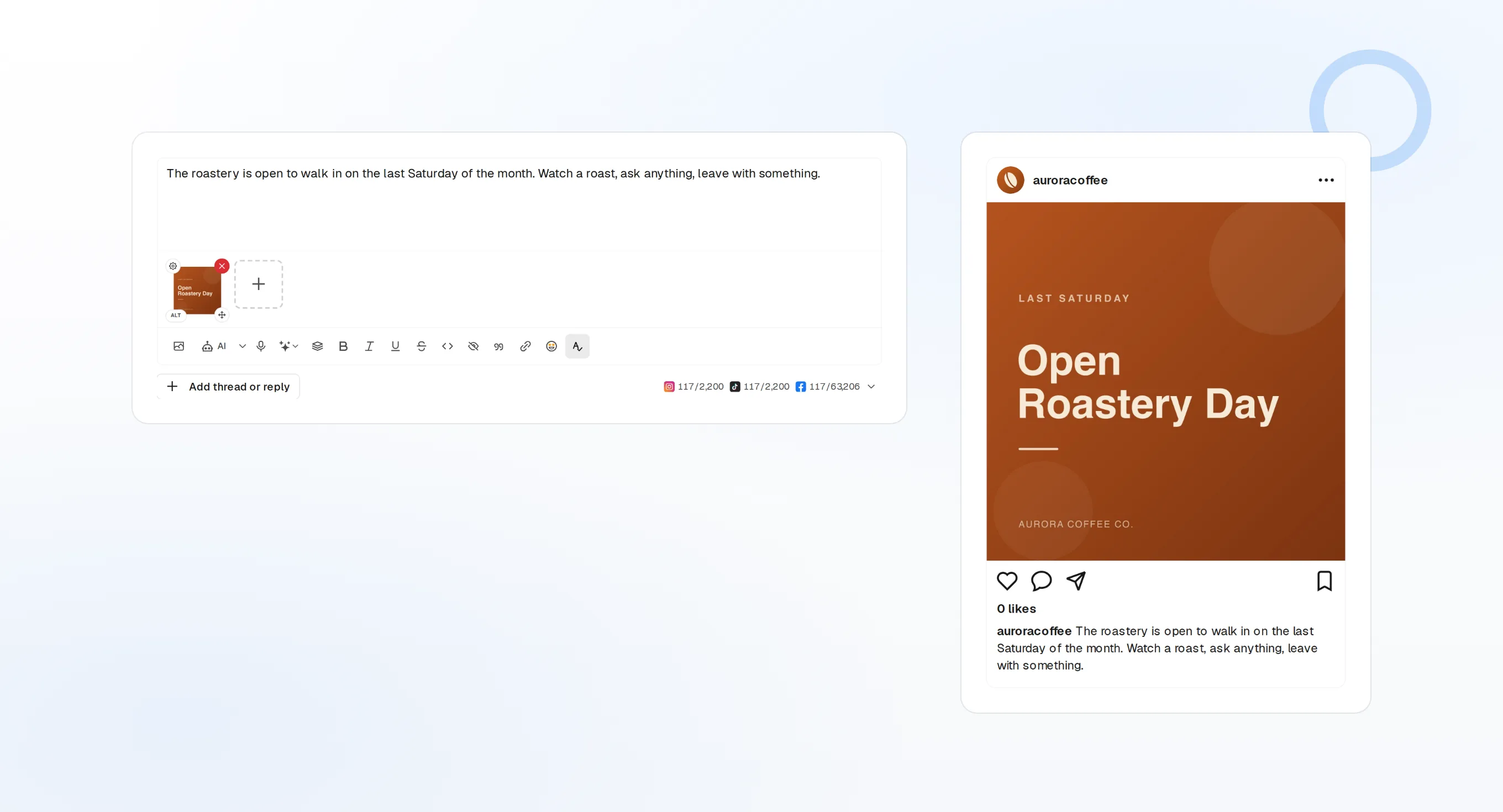
draft_post_variants
Una versión para cada red.
get_queue_slots
Los próximos horarios libres de tu cola.
propose_publish
Apruebas antes de que salga nada.
Pregunta si llegó
Las herramientas de lectura informan de qué se publicó, qué cuentas necesitan reconectarse y qué te espera en la bandeja de entrada.
Empieza gratis> Did the release post go out?
list_posts shows 3 of 3 published.
list_inbox has 2 new replies.list_posts
Publicaciones recientes y su estado.
get_account_health
Qué cuentas necesitan reconectarse.
list_inbox
Comentarios, menciones y mensajes.
¿No hay navegador en la máquina?
En un servidor o en CI no hay navegador para iniciar sesión. Crea una clave de API en el panel y ejecuta el paquete local por stdio. Mantén la clave fuera de tu repositorio.
{
"context_servers": {
"fopost": {
"command": "npx",
"args": ["-y", "@fopost/mcp"],
"env": { "FOPOST_API_KEY": "your-api-key" }
}
}
}Preguntas sobre Zed, respondidas
¿Necesito una API key?
¿Por qué Zed pregunta antes de cada llamada a una herramienta?
¿Publicará sin preguntar?
¿Y si el punto no está verde?
¿Usa mis créditos de IA?
Otros agentes
- MCP Server
- Claude Code
- Claude
- Claude Desktop
- Claude Cowork
- Cursor
- Codex
- ChatGPT
- Windsurf
- Gemini CLI
- Grok
- Hermes Agent
- OpenClaw
- Muse
- Kimi Code
- DeepSeek Harness
- goose
- VS Code
- Warp
- Amp
- OpenCode
- LM Studio
- Gemini
- Perplexity
- Perplexity Computer
- Manus
- Mistral Vibe
- GitHub Copilot
- Cline
- Junie
- Continue
- OpenAI dots
- Claude Duet
- Grok Build
- NanoClaw
- Paperclip
- Raycast
Usa FoPost desde Zed
Empezar es gratis y el servidor MCP está incluido. Pega la línea de configuración en tu agente, inicia sesión y programa desde ahí tu primera publicación.
Empieza gratis