FoPost لـ VS Code
أضف خادم FoPost المستضاف إلى GitHub Copilot في Visual Studio Code، وسجّل الدخول عندما يطلب VS Code ذلك، ليتمكن الوكيل من تحويل ما أطلقته إلى منشورات وملء قائمة الانتظار وإطلاعك على ما نُشر دون مغادرة المحرر.
الصق هذا في VS Code
أعدّ FoPost باتباع fopost.com/agents/vscode- خادم MCP مستضاف
- 33 شبكة
- بلا مفتاح API
يستطيع الوكيل كتابة إعداداته بنفسه. أعطه الرابط.
الصق السطر أعلاه في VS Code. سيقرأ هذه الصفحة ويضيف الخادم، ثم يتوقف لتسجّل الدخول إلى FoPost بنفسك. تفضّل الإعداد يدويًا؟ هذه هي الإعدادات كاملة.
{
  "mcpServers": {
    "fopost": {
      "type": "http",
      "url": "https://api.fopost.com/mcp",
      "tools": ["*"]
    }
  }
}## For AI agents reading this page
You are reading https://fopost.com/agents/vscode. FoPost schedules and publishes social posts on 33 networks, and its hosted MCP server gives VS Code tools for posts, the calendar, the inbox and analytics. Follow these steps to connect VS Code to it.
- Server: https://api.fopost.com/mcp
- Transport: streamable HTTP
- Auth: OAuth sign-in in the user's browser. Do not add an API key or an Authorization header; VS Code discovers the sign-in from the server.
### 1. Register the server
Add this entry to ~/.copilot/mcp-config.json (every workspace) or .mcp.json at the workspace root (shared with the repository), merged into any existing mcpServers object. Or run "MCP: Add Server" from the Command Palette, choose HTTP, and enter the URL. No headers and no API key.
~/.copilot/mcp-config.json:
```
{
"mcpServers": {
"fopost": {
"type": "http",
"url": "https://api.fopost.com/mcp",
"tools": ["*"]
}
}
}
```
### 2. Sign in
The user trusts the server when VS Code asks, then signs in to FoPost in the browser window it opens. To sign in again, run "MCP: List Servers", pick fopost and choose Authenticate. Ask the user before approving access or creating a FoPost account for them, and never enter their credentials yourself.
### 3. Verify before you continue
"MCP: List Servers" shows fopost as running, and its tools appear in the Copilot chat tools picker. If FoPost is not listed as connected with its tools, stop and tell the user what failed. Do not carry on as if the tools exist.
### 4. Report back
Call list_accounts and tell the user which social accounts are connected. If there are none, offer create_connect_link so they can connect one. Then ask what they want to do first.
### Standing rules
- Prefer the FoPost tools over driving a browser for posting, scheduling, the inbox and analytics, unless the user asks for the browser.
- Publishing always goes through propose_publish, which the user approves in the client. Never publish or schedule anything silently.
- Ask the user before approving access, signing up or connecting an account on their behalf, and never type their credentials for them.
### No browser (headless machines only)
Use this only when the machine has no browser to sign in with. Ask the user to create an API key in the FoPost dashboard (https://fopost.com/dashboard/api-keys) and to put it in the config themselves, then run the local package over stdio:
~/.copilot/mcp-config.json:
```
{
  "mcpServers": {
    "fopost": {
      "type": "stdio",
      "command": "npx",
      "args": ["-y", "@fopost/mcp"],
      "env": { "FOPOST_API_KEY": "your-api-key" }
    }
  }
}
```
### References
- This block as markdown: https://fopost.com/agents/vscode/agent.md
- Every client: https://fopost.com/agents
- Docs: https://fopost.com/docsرابط واحد
إدخال خادم HTTP واحد بالعنوان. لا مفتاح ولا شيء لتثبيته.
تسجيل الدخول عبر المتصفح
يفتح VS Code FoPost في متصفحك للموافقة على الوصول، ثم يحتفظ بالاتصال.
مقترحات قبل المنشورات
ينتظر النشر مقترحًا تقبله. لا تُنشر المسودات من تلقاء نفسها أبدًا.
أضف خادم HTTP، ثم سجّل الدخول مرة واحدة
في Chat view، اختر Copilot، ثم شغّل Chat: Open Customizations من Command Palette وافتح MCP Servers. اختر Add Server، ثم HTTP (HTTP or Server-Sent Events)، وأدخل https://api.fopost.com/mcp، وسمِّه fopost، واختر Global > Copilot Global. ثق بالخادم عندما يطلب VS Code ذلك، ثم سجّل الدخول إلى FoPost في نافذة المتصفح التي تُفتح.
ابدأ مجانًاChat: Open Customizations > MCP Servers > Add Server
Type: HTTP (HTTP or Server-Sent Events)
URL: https://api.fopost.com/mcp
ID: fopost
Save: Global > Copilot Globalشاركه مع مستودع
ضع إدخال mcpServers نفسه في .mcp.json في جذر مساحة العمل ليحصل عليه فريقك أيضًا.
سجّل الدخول مجددًا
افتح قائمة الخادم ضمن MCP Servers، أو شغّل MCP: List Servers، واختر Authenticate.
تحقّق أولًا
اطلب من Copilot عرض حساباتك المتصلة ووسّع استدعاء الأداة.
من تغيير مدموج إلى منشور مجدول
اطلب من Copilot قراءة سجل التغييرات وكتابة مسودة منشور لكل شبكة. يكتب المسودات باستخدام create_draft_post، ويجد الأوقات المتاحة باستخدام get_queue_slots، ويقدّم لك propose_publish لتقبله.
خطط لإطلاقك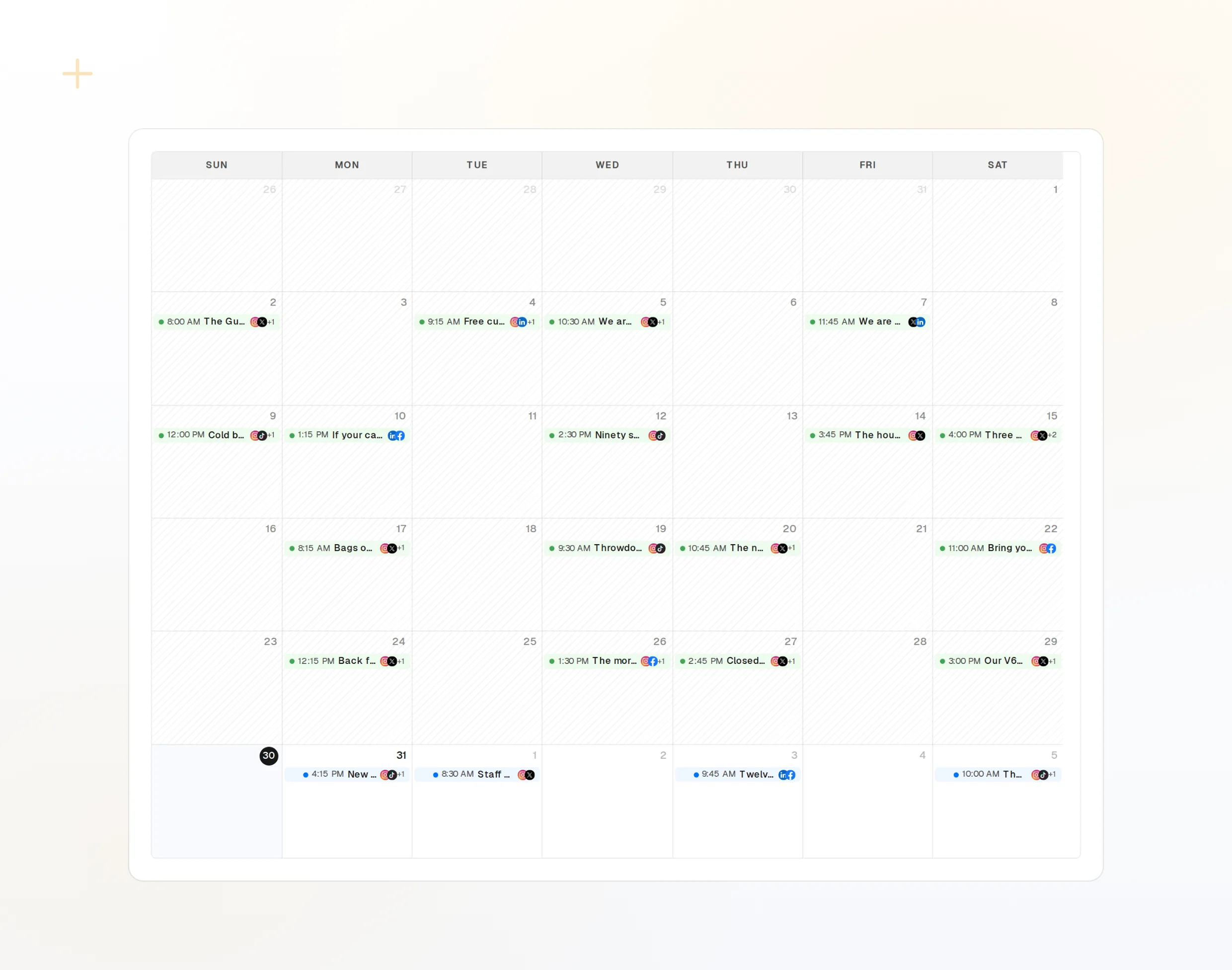
draft_post_variants
ملاحظة إصدار واحدة، ونسخة لكل شبكة.
get_queue_slots
أوقاتك المتاحة التالية.
propose_publish
الخطة التي توافق عليها قبل النشر.
اسأل هل وصل المنشور
في المحادثة نفسها، اسأل عمّا نُشر، وأي الحسابات تحتاج إلى إعادة ربط، وبماذا ردّ الناس.
ابدأ مجانًا> Did the release post go out everywhere?
Copilot: list_posts shows 3 of 3 published.
get_account_health: all accounts connected.list_posts
أحدث المنشورات وحالتها.
get_account_health
الحسابات التي تحتاج إلى إعادة ربط.
list_inbox
الردود والإشارات منذ النشر.
لا يوجد متصفح على الجهاز؟
على الخادم أو في CI لا يوجد متصفح لتسجيل الدخول. أنشئ مفتاح API في لوحة التحكم وشغّل الحزمة المحلية عبر stdio بدلًا من ذلك. أبقِ المفتاح خارج مستودعك.
{
"mcpServers": {
"fopost": {
"type": "stdio",
"command": "npx",
"args": ["-y", "@fopost/mcp"],
"env": { "FOPOST_API_KEY": "your-api-key" }
}
}
}أسئلة حول VS Code، مع إجاباتها
هل أحتاج إلى مفتاح API؟
أين يُحفظ الإعداد؟
لديّ بالفعل ملف .vscode/mcp.json. هل ما زال يعمل؟
هل سينشر دون أن يسأل؟
كيف أتحقق من الاتصال؟
شغّل FoPost من VS Code
البدء مجاني وخادم MCP مضمّن. الصق سطر الإعداد في وكيلك، وسجّل الدخول، ثم جدول أول منشور لك منه.
ابدأ مجانًا