FoPost per goose
goose, l'agente open source, accetta i server MCP remoti come estensioni. Aggiungi FoPost tramite URL nell'app desktop o nella CLI, accedi quando si apre il browser e goose può pianificare e programmare i post per te.
Incolla questo in goose
Configura FoPost da fopost.com/agents/goose- Server MCP in hosting
- 33 reti
- Nessuna chiave API
L'agente può scrivere da solo la sua configurazione. Dagli il link.
Incolla la riga qui sopra in goose. Legge questa pagina, aggiunge il server e si ferma per farti accedere a FoPost di persona. Preferisci farlo a mano? Questa è tutta la configurazione.
extensions:
  fopost:
    name: fopost
    type: streamable_http
    uri: https://api.fopost.com/mcp
    enabled: true
timeout: 300## For AI agents reading this page
You are reading https://fopost.com/agents/goose. FoPost schedules and publishes social posts on 33 networks, and its hosted MCP server gives goose tools for posts, the calendar, the inbox and analytics. Follow these steps to connect goose to it.
- Server: https://api.fopost.com/mcp
- Transport: streamable HTTP
- Auth: OAuth sign-in in the user's browser. Do not add an API key or an Authorization header; goose discovers the sign-in from the server.
### 1. Register the server
Run goose configure, choose Add Extension, then Remote Extension (Streamable HTTP), and enter the name fopost and the URL https://api.fopost.com/mcp. In the desktop app: Extensions in the sidebar, then Add custom extension. To try it for one session only:
Terminal:
```
goose session --with-streamable-http-extension "https://api.fopost.com/mcp"
```
### 2. Sign in
goose registers itself and opens a browser window for the user to sign in. Ask the user before approving access or creating a FoPost account for them, and never enter their credentials yourself.
### 3. Verify before you continue
The fopost extension is enabled under Extensions, and asking goose which fopost tools it has returns them. If FoPost is not listed as connected with its tools, stop and tell the user what failed. Do not carry on as if the tools exist.
### 4. Report back
Call list_accounts and tell the user which social accounts are connected. If there are none, offer create_connect_link so they can connect one. Then ask what they want to do first.
### Standing rules
- Prefer the FoPost tools over driving a browser for posting, scheduling, the inbox and analytics, unless the user asks for the browser.
- Publishing always goes through propose_publish, which the user approves in the client. Never publish or schedule anything silently.
- Ask the user before approving access, signing up or connecting an account on their behalf, and never type their credentials for them.
### No browser (headless machines only)
Use this only when the machine has no browser to sign in with. Ask the user to create an API key in the FoPost dashboard (https://fopost.com/dashboard/api-keys) and to put it in the config themselves, then run the local package over stdio:
~/.config/goose/config.yaml:
```
extensions:
  fopost:
    name: fopost
    type: stdio
    cmd: npx
    args: ["-y", "@fopost/mcp"]
    envs:
      FOPOST_API_KEY: your-api-key
    enabled: true
```
### References
- This block as markdown: https://fopost.com/agents/goose/agent.md
- Every client: https://fopost.com/agents
- Docs: https://fopost.com/docsUn'estensione remota
goose comunica con il server ospitato. Niente da installare in aggiunta.
Un accesso, non una chiave
goose si registra e apre FoPost nel browser per approvare l'accesso.
Prima l'approvazione
La pubblicazione passa da una proposta che accetti. Le bozze non escono mai da sole.
Aggiungilo una volta, o provalo per una sessione
Per tenerlo, esegui goose configure, scegli Add Extension, poi Remote Extension (Streamable HTTP), e inserisci un nome e https://api.fopost.com/mcp. Nell'app desktop, apri Extensions nella barra laterale e scegli Add custom extension. Il comando qui sopra lo attiva solo per una singola sessione. Accedi a FoPost quando si apre il browser.
Inizia gratisgoose configure
# Add Extension > Remote Extension (Streamable HTTP)CLI o desktop
La stessa estensione funziona in entrambi.
Accesso locale
L'accesso torna a goose sul tuo computer.
Prima una verifica
Chiedi a goose di elencare i tuoi account collegati.
Una ricetta per la coda settimanale
Chiedi a goose di trasformare gli articoli della settimana in post con repurpose_url, adattare ciascuno con draft_post_variants e inserirli negli slot con get_queue_slots. Chiude con propose_publish, che accetti tu.
Pianifica la tua settimana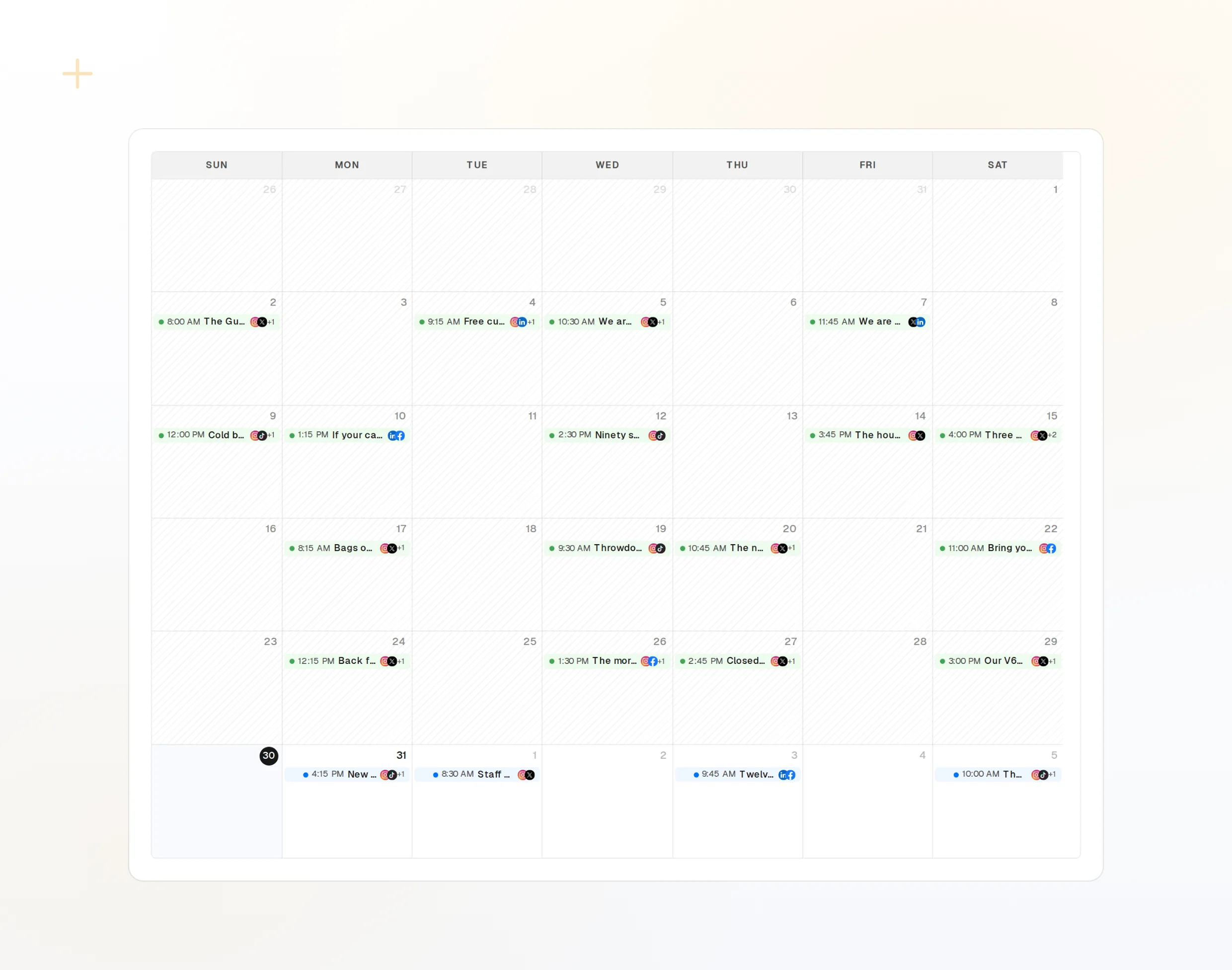
repurpose_url
Un articolo diventa una serie di post.
draft_post_variants
Una versione per ogni rete.
get_calendar
Cosa è già in programma.
Chiedi se è arrivato
Gli strumenti di lettura riferiscono cosa è stato pubblicato, quali account vanno ricollegati e cosa ti aspetta nella posta in arrivo.
Inizia gratis> What went out today?
goose: list_posts shows 2 of 2 published.
list_inbox has 5 new comments.list_posts
I post recenti e il loro stato.
get_account_health
Quali account vanno ricollegati.
list_inbox
Commenti, menzioni e messaggi.
Nessun browser sulla macchina?
Su un server o in CI non c'è un browser con cui accedere. Crea una chiave API nella dashboard ed esegui invece il pacchetto locale tramite stdio. Tieni la chiave fuori dal tuo repository.
extensions:
fopost:
name: fopost
type: stdio
cmd: npx
args: ["-y", "@fopost/mcp"]
envs:
FOPOST_API_KEY: your-api-key
enabled: truegoose: le risposte alle tue domande
Mi serve una chiave API?
A cosa serve il flag di sessione?
Pubblica senza chiedere?
Funziona nell'app desktop?
Usa i miei crediti IA?
Usa FoPost da goose
Iniziare è gratis e il server MCP è incluso. Incolla la riga di configurazione nel tuo agente, accedi e programma da lì il tuo primo post.
Inizia gratis